

 III
III
Lander Uploads
What Lander Uploads are and how to manage them from the Lander Uploads screen.
This page explains what a Lander Upload is and how to manage yours from the Lander Uploads screen.
A Lander Upload is a folder of website files that Proferex hosts for you: HTML pages, stylesheets, scripts, images, and fonts. It can be a one-page lander or a whole website.
Most trackers only track. You host your landers somewhere else and link them up. Proferex hosts them too, which changes two things:
- Lander tests take minutes. Upload a new version, publish it, and add it to your campaign. There is no separate hosting account, file transfer, or deploy step between you and the next test.
- You can run landers with no redirect. A hosted lander can load straight on your campaign link, so the visitor never passes through a redirect. That matters on platforms such as Meta and Google, which are strict about ads that redirect.
Already host your landers somewhere else? You can still track them with the External Hosted lander type in the Tracker. Those landers always use a redirect.
You find them under Landing Pages → Lander Uploads.
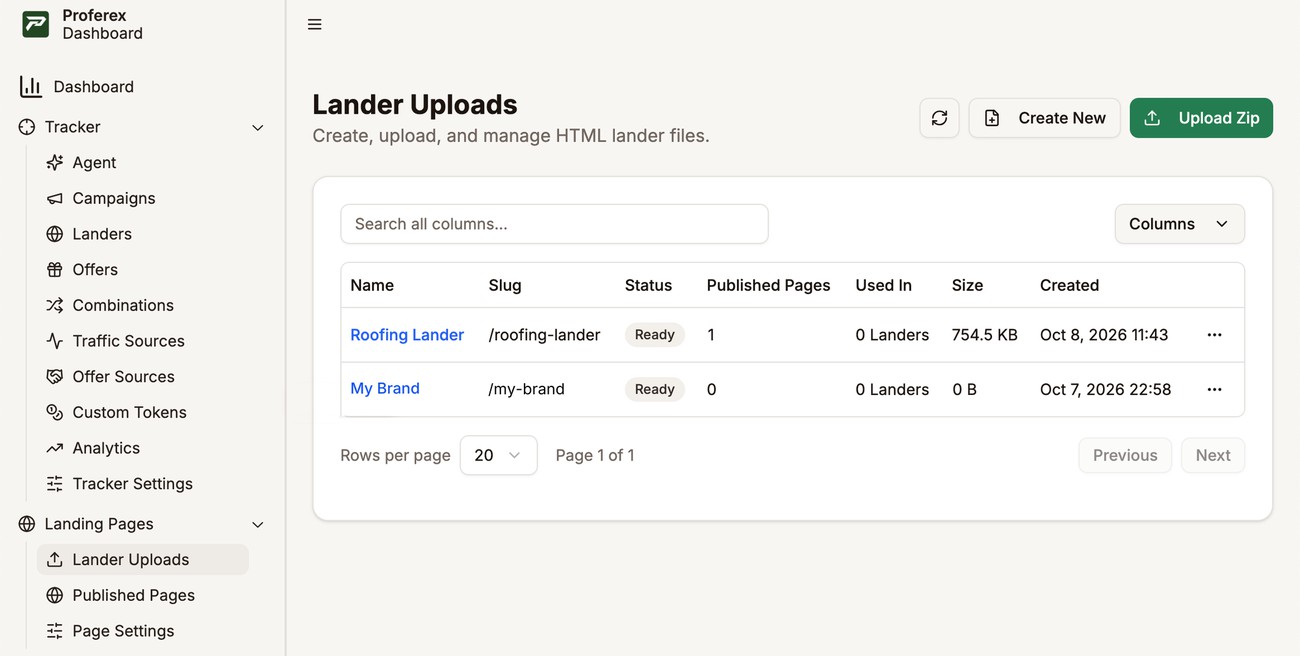
There are two ways to add one:
- Upload Zip if you already have the files, for example a lander you bought, exported, or built somewhere else.
- Create New if you are starting from scratch or pasting in code. You get an empty upload and build it in the file manager.
Either way, you end up with the same thing: a Lander Upload you can edit in the File Manager.
One upload can hold many landers. You can upload the landers for all your campaigns together and publish each one separately to use in the Tracker. See Many landers in one upload.
From files to a live page
- Set up a page domain in Page Settings, once. See Page Domain.
- Add your files with Upload Zip or Create New.
- Edit them in the file manager whenever you need to.
- Your pages are live. Once your page domain is active, every file is online at its own address. If all you want is a website, you are done here.
- Publish the pages you want to use in campaigns. Publishing lets you pick a page as a lander in the Tracker. See Published Pages.
You can add files and publish pages before your domain is ready. The pages start opening as soon as the domain goes live.
The columns
Each row is one Lander Upload.
| Column | What it shows |
|---|---|
| Name | The name you gave it. Click it to open the file manager. |
| Slug | The part of the address that belongs to this upload, such as /roofing-lander. See Slugs. |
| Status | Whether the upload is ready to use. See below. |
| Published Pages | How many of its pages are published. |
| Used In | How many landers in the Tracker use its pages. |
| Size | The total size of its files. |
| Created | When you added it. |
Use the search box to find an upload, and Columns to show or hide columns.
Statuses

| Status | What it means |
|---|---|
| Uploading | Your zip is still on its way up from your browser. |
| Queued | The zip has arrived and is waiting to be unpacked. |
| Processing | The zip is being unpacked and checked. |
| Ready | Everything is in place. You can edit and publish. |
| Failed | Something went wrong. Hover over the badge to see why. |
Most uploads reach Ready within a minute. If one fails, you can often fix the cause and choose Retry from the row menu instead of uploading again. See If the upload fails.
An upload can be up to 50 MB zipped, 100 MB unzipped, and 500 files. If you need more, contact us and we can raise the limits on your account.
The row menu
Open the ⋯ menu at the end of a row to manage that upload.
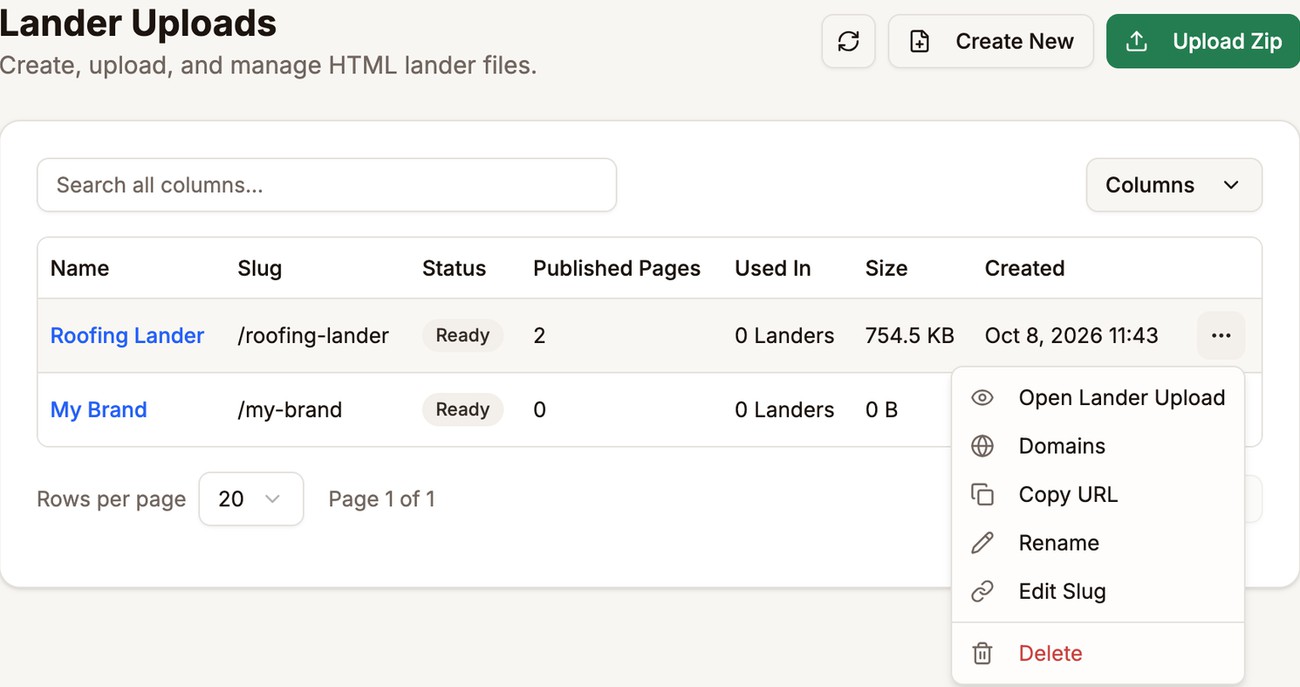
- Open Lander Upload opens the file manager. Clicking the name does the same.
- Domains gives this upload a domain of its own, so it opens at an address like
mybrand.comwith no slug. See Put a Lander on Its Own Domain. - Copy URL copies the link to the upload's default page. It shows up once the upload has a default page. Zip uploads get one automatically. Uploads you build with Create New get one when you publish your first page.
- Rename changes the name. It is only a label, so your addresses stay the same.
- Edit Slug changes the slug, which does change your addresses. Read Slugs first.
- Retry shows up on failed uploads and runs the unpacking again.
- Delete removes the upload and every file in it. Any published pages from it stop working. You cannot undo this.
Slugs
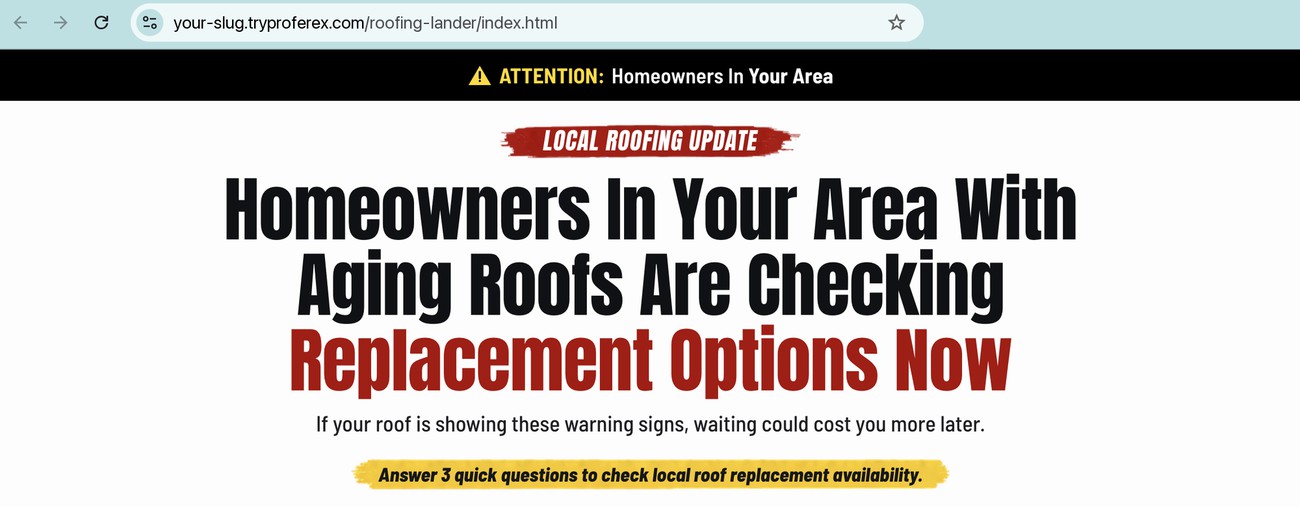
The slug is the part of the address that points to one upload. In your-slug.tryproferex.com/roofing-lander/index.html, the slug is roofing-lander.
Proferex makes one from the upload's name and adds a short code to keep it unique, such as roofing-lander-4bd4ee5a. You can change it to something cleaner with Edit Slug in the row menu, or with the pencil next to Slug inside the upload. Slugs use lowercase letters, numbers, and hyphens.
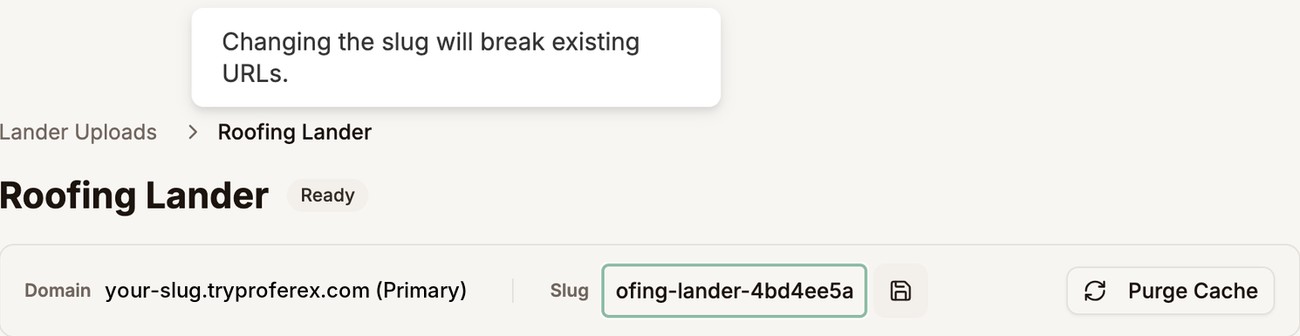
Changing the slug changes every address in the upload straight away. Links already in your ads, emails, or campaigns keep using the old slug and stop working. Pick the slug you want before you send traffic, not after.
A domain connected with Domains keeps working when the slug changes, because it does not use the slug.
Next step
Add your first upload with Upload Zip, or start an empty one with Create New.