

 III
III
Upload Zip
How to upload a zipped lander and get it ready to publish.
This page shows you how to put a finished lander online by uploading it as a zip file.
Any static website works: HTML, CSS, JavaScript, images, fonts, videos, and PDFs. Sites exported from website builders work too. Server code such as PHP does not run, so export those sites to plain HTML first.
Before you zip
- Put your home page at the top. Name it
index.htmland keep it at the top level of the zip, not in a subfolder. It is the page people see at the upload's main address. - One wrapper folder is fine. If everything sits inside a single folder, Proferex removes that folder when it unpacks.
mylander/index.htmlends up asindex.html. - Keep links relative. Paths like
css/style.cssorimages/hero.pngwork as they are. Links to other websites keep pointing to those websites. - Use .zip only. Repack
.raror.7zfiles as.zipfirst.
An upload can be up to 50 MB zipped, 100 MB unzipped, and 500 files. If yours is bigger, contact us and we can raise your limits.
Upload it
Go to Landing Pages → Lander Uploads and click Upload Zip.
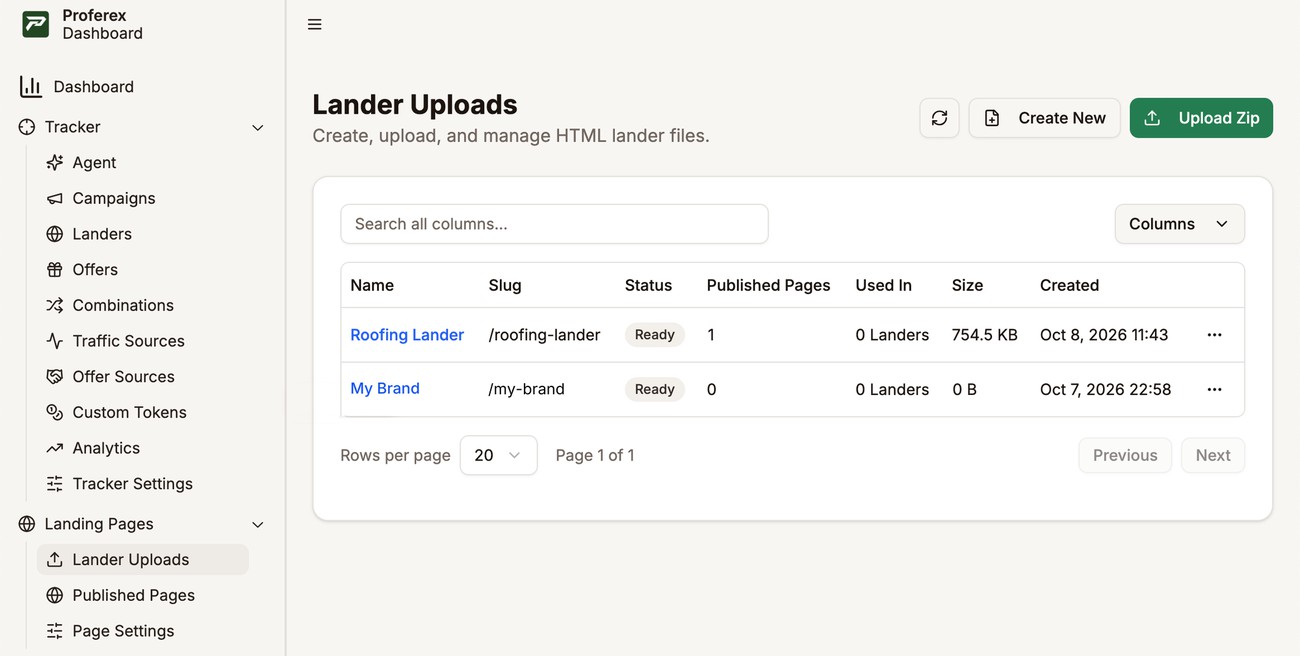
Landing Pages → Lander Uploads Type a Name. It is for you, and it also becomes the start of the upload's slug, so keep it short. Then drag your zip into the box, or click browse to pick it. The box shows the file name and size so you can check it is the right file.
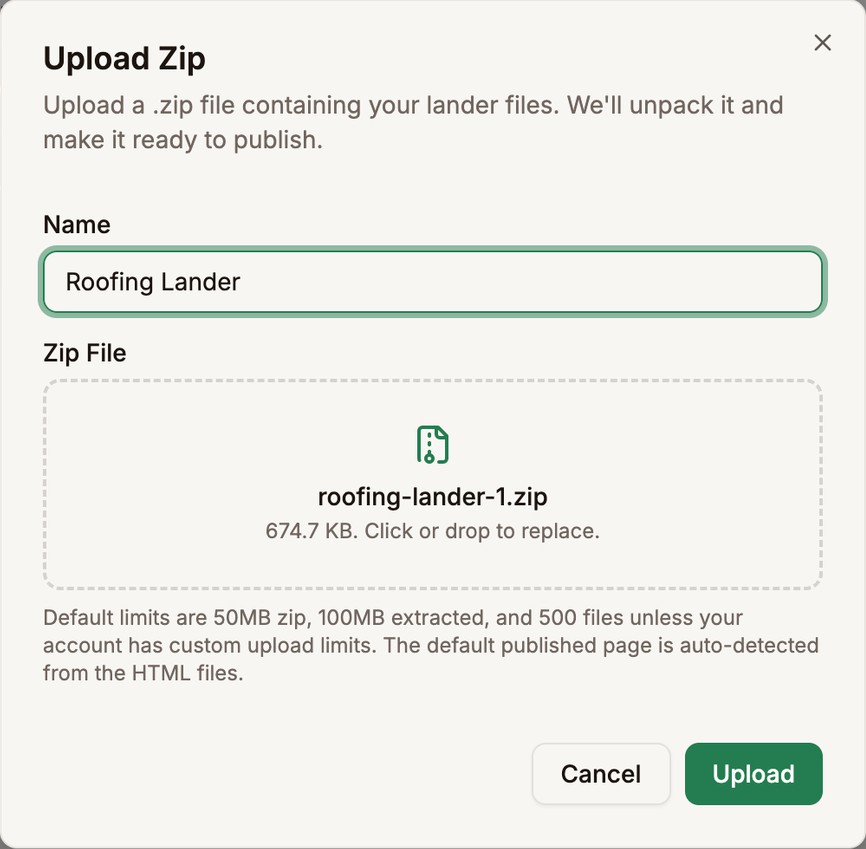
Name it, add the zip, and upload Click Upload and keep the dialog open until the progress bar finishes. A large zip on a slow connection can take a while.
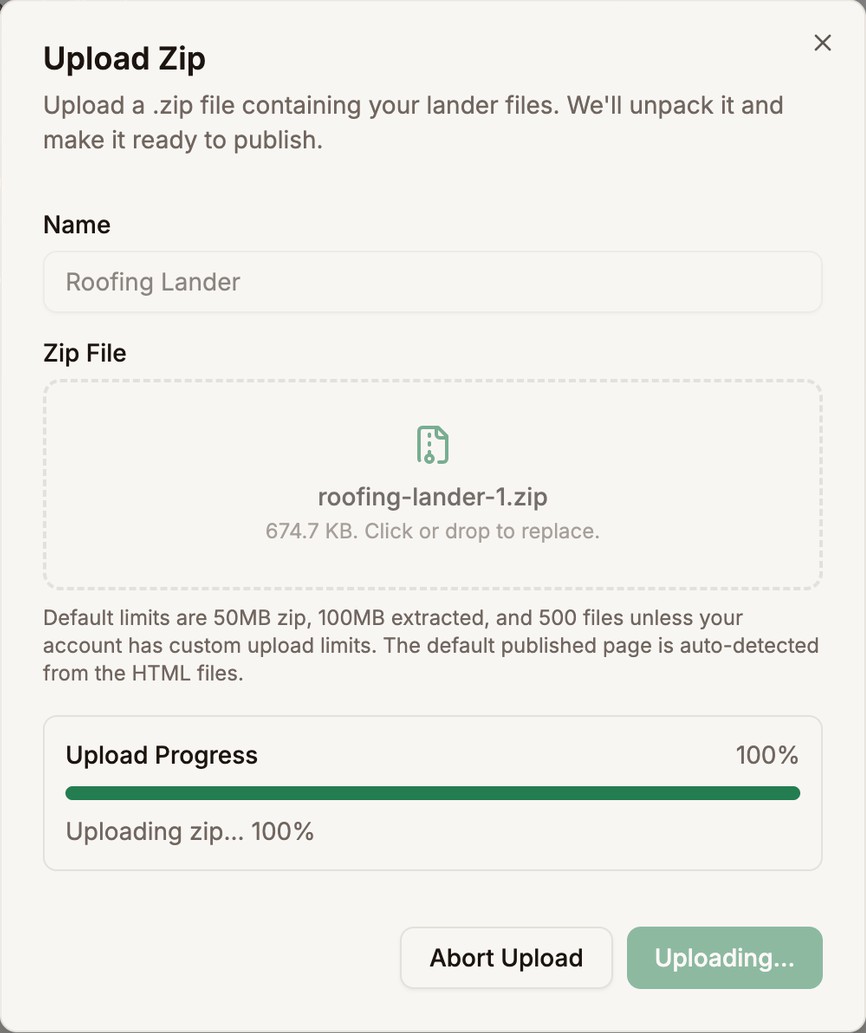
Wait for the upload to finish The upload appears in your list as Processing while Proferex unpacks it. It usually reaches Ready within a minute.

Ready, with its home page already published
Proferex finds your home page, usually the top-level index.html, and publishes it for you. That is why Published Pages shows 1 straight away. The page is ready to pick as a lander in the Tracker, and Copy URL in the row menu copies its address. Publish any other pages yourself. See Published Pages.
Uploading a zip with the same name as an existing upload does not replace it. Every zip becomes a new upload. To change files in an upload you already have, use the File Manager. It can also unpack a zip into an existing upload.
If the upload fails
A failed upload shows a red Failed badge. Hover over it to see why. If nothing shows, open the upload, where the full message is always shown. The usual causes:
- Too many files, or too big. The zip is over your limits. Make it smaller, or ask us to raise your limits. Large images and leftover folders are often the culprits.
- Not a valid zip. The file is damaged or is not really a zip. Export it again.
- No usable files. The zip is empty, or nothing in it can be served.
Once you have fixed the cause, open the row's ⋯ menu and choose Retry. Proferex keeps your zip for seven days after a failure, so you do not need to upload it again. If the problem is inside the zip itself, fix the zip and upload it again instead.
Next step
Click the upload's name to look through its files in the File Manager.