

 IX
IX
Tracker Settings
Account-wide tracker settings, including where stray traffic goes.
This page walks you through Tracker Settings: the settings that apply to your whole tracker rather than to one campaign, and the logs where you check that tracking works.
Go to Tracker → Tracker Settings. The page has three tabs: General Settings, Click/Conversion Log, and Postback Log.
Tracking Domains
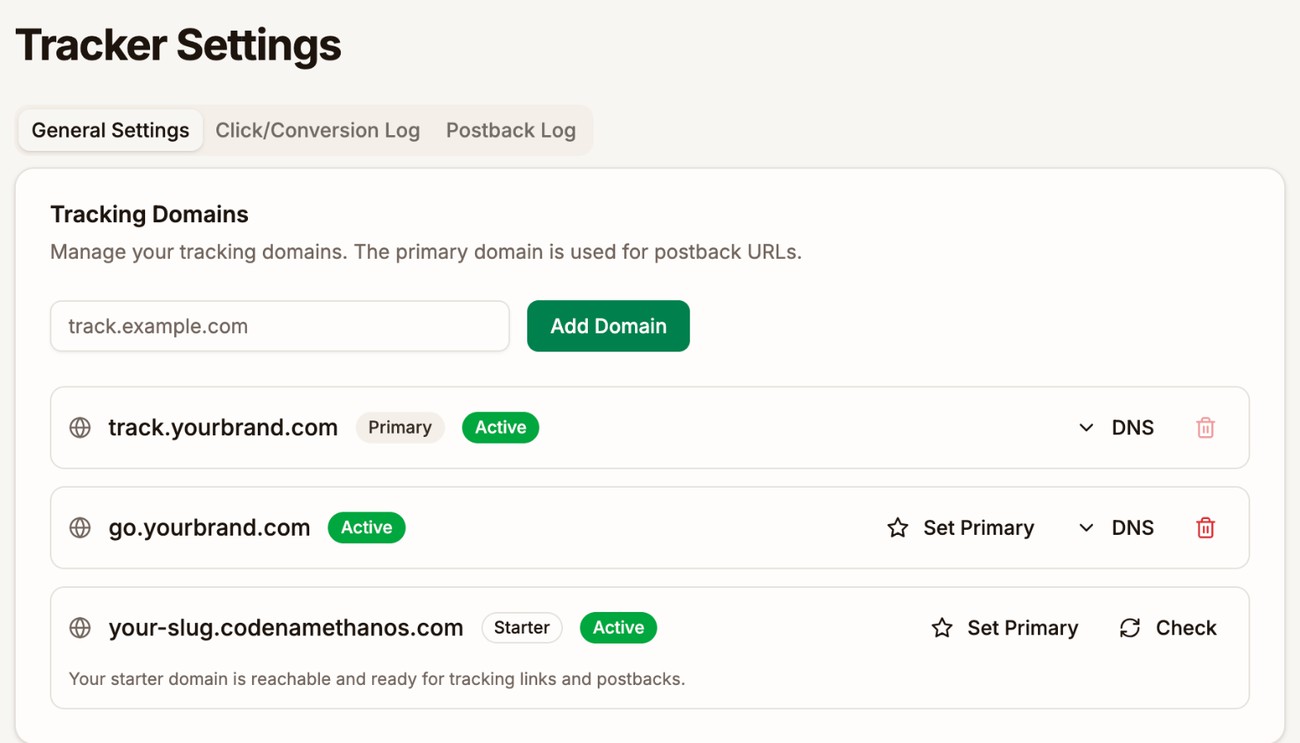
Tracking Domains lists the domains your campaign links and postback URL can use: your Starter domain, which every account gets, and any domains of your own. The Primary domain is the one Proferex fills in by default.
- Type a domain and click Add Domain to add your own.
- Set Primary makes a domain the default.
- DNS shows the records to add at your domain provider.
- The trash icon removes a domain. You can't remove the primary domain.
See Tracking Domain for the full setup.
Global Postback URL
Global Postback URL is where your offer sources send conversions. You have one for your whole account. Pick a domain in Select Tracking Domain and copy the Postback URL. The Parameters table lists everything it accepts.
See Postbacks for how to set it up with your offer sources.
Piggyback Postbacks
Piggyback Postbacks forward each conversion you receive to another URL, such as another tracker or a partner. Click Add Postback to add one. Each row has a switch to turn it on or off, and icons to edit or delete it.
See Forward conversions with piggyback postbacks.
Fallback Campaign
Sometimes a campaign link can't send a visitor anywhere. For example, the campaign was deleted, has no combination, or every offer in its combination has reached its conversion cap. The Fallback Campaign catches those visitors, so they still land somewhere useful and are tracked like any other visit.
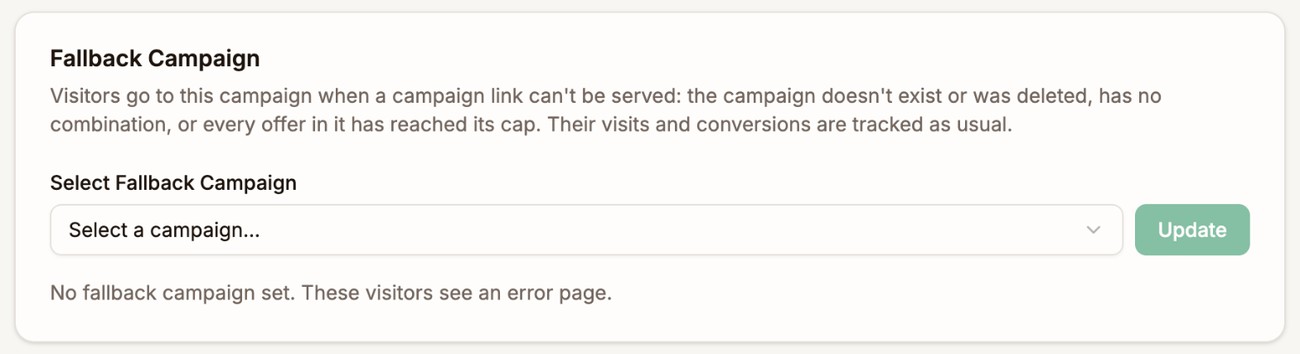
- Open Select Fallback Campaign and pick a campaign.
- Click Update.
The line under the field confirms where stray visitors go. Without a fallback campaign, they see a neutral error page.
For a link to a campaign that doesn't exist, Proferex needs to know it's yours. Slug links (/l/YOUR-ALIAS/...) always are, and so are links on your own tracking domain or starter domain. A link Proferex can't trace to an account shows a neutral page.
Table Columns
Table Columns sets which numbers your tracker tables show, and in what order. It applies to every table in the tracker: your lists, campaign pages, detail pages, and Analytics. See Table Columns.
Click/Conversion Log
The Click/Conversion Log tab lists every click and conversion as it is recorded, newest first. Use it to check that a test click or a test postback arrived.
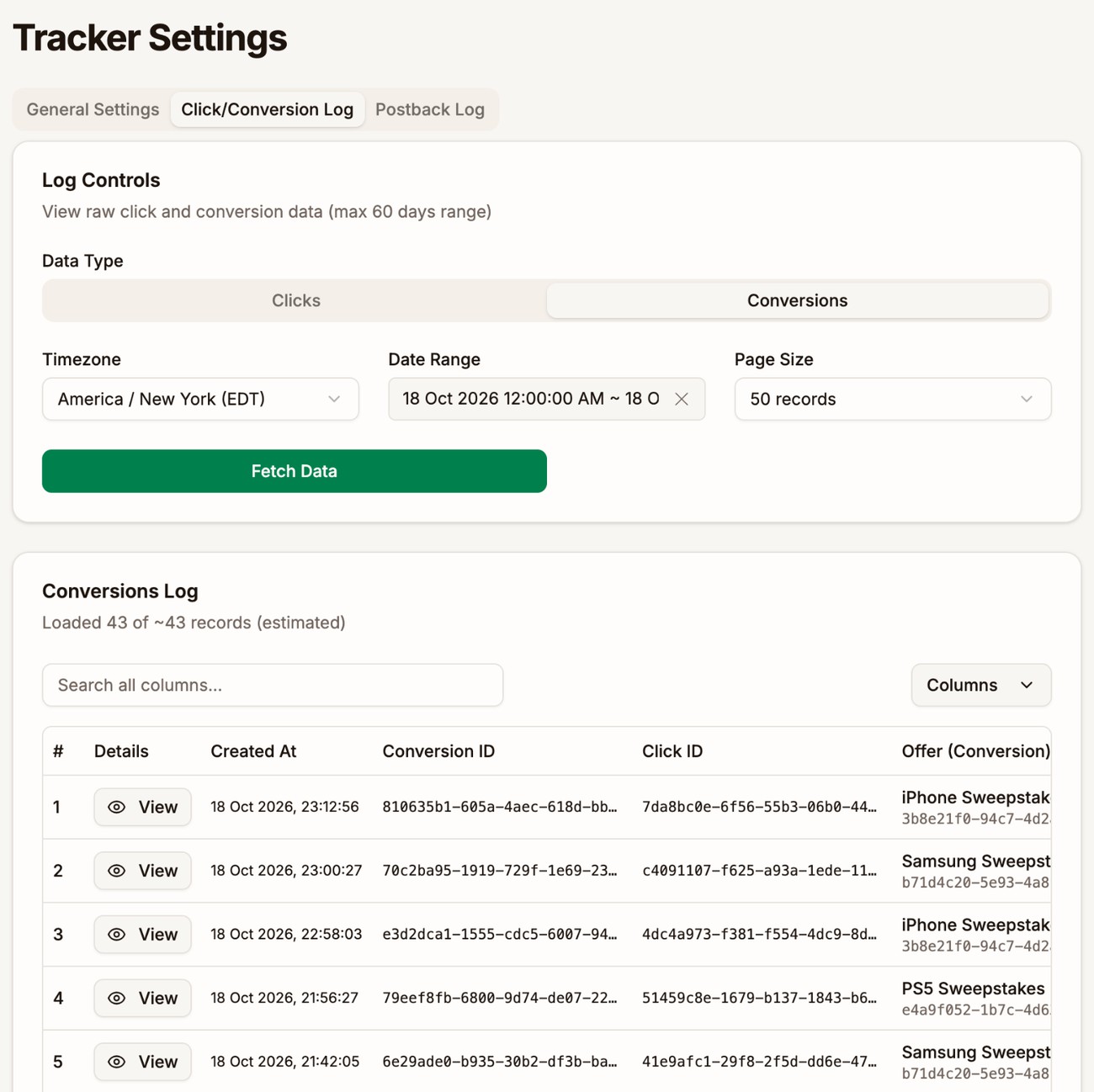
- Under Data Type, choose Clicks or Conversions.
- Pick the Timezone, Date Range, and Page Size. The range can be up to 60 days.
- Click Fetch Data. Click Load More at the bottom to see older rows.
Click View on a row to see everything recorded for it: the campaign, lander, offer, and traffic source, the visitor's location and device, and for a conversion, the payout and transaction ID.
The log shows new clicks and conversions straight away. Your reports catch up within a minute.
Postback Log
The Postback Log tab lists every postback Proferex sends out: to your traffic sources, and to your piggyback postback URLs. Each row shows the URL that was called, its status, and the response code. Click Retry to send a postback again.
Conversions your offer sources send to you are in the Click/Conversion Log under Conversions, not here.
Next step
Pick a fallback campaign, so no visitor is left without somewhere to go.