

 IX
IX
Currency
Choose the currency your reports are shown in.
This page shows you how to choose the currency your reports are shown in, and how Proferex handles offers that pay, and traffic sources that charge, in other currencies.
Your reports show all revenue and cost in one currency, your display currency. Amounts in other currencies are converted, so every row adds up and offers that pay in euros compare fairly with offers that pay in dollars.
Choose your display currency
- Click your name at the bottom of the sidebar and choose Account.
- Open the Preferences tab.
- Under Display currency, pick a Currency.
- Click Change currency to confirm.
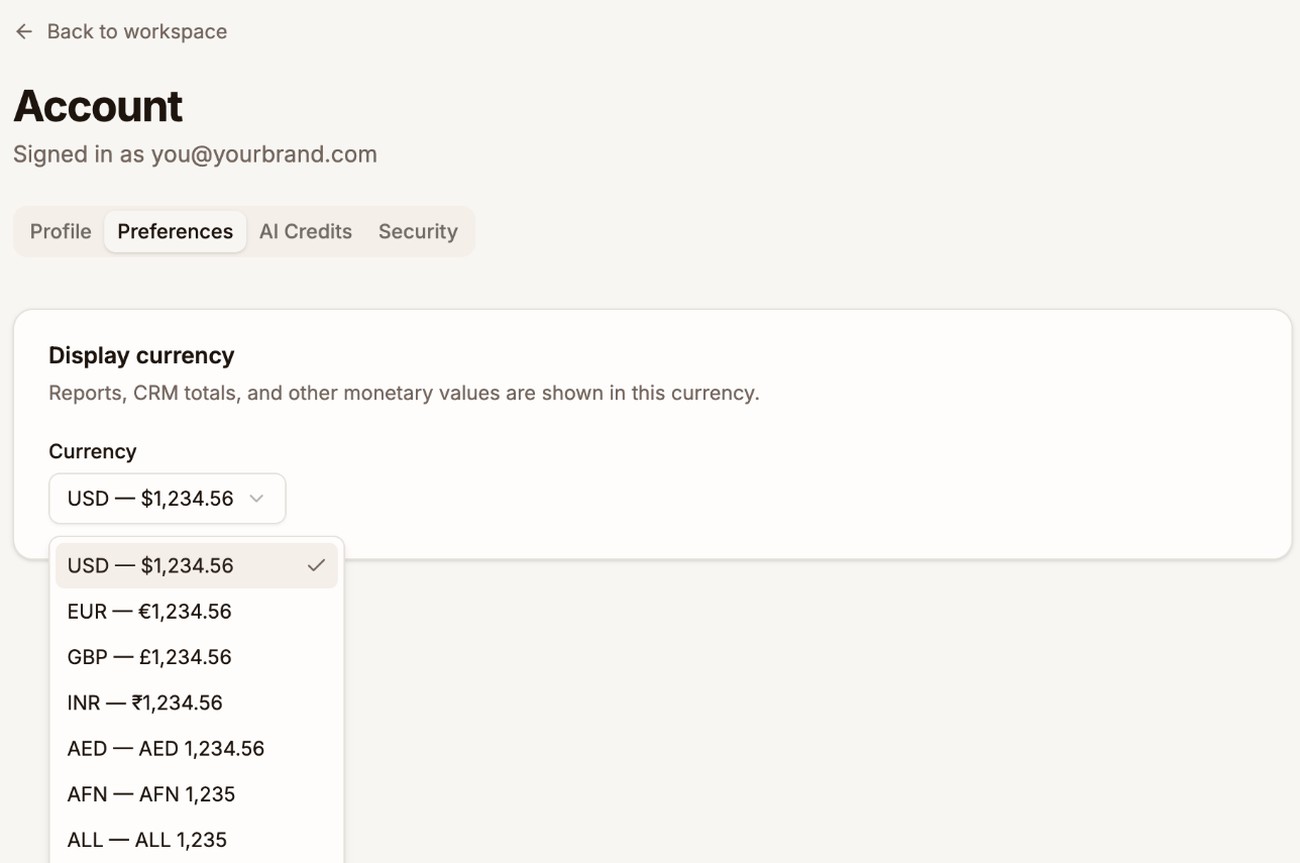
Your reports, the Dashboard, and your lists switch to the new currency. It can take a few moments to show everywhere. You can change it at any time. Your data doesn't change, only the currency it is shown in.
Set the currency of each offer
Each offer has a Currency. Set it to the currency the offer pays you in, such as EUR or GBP. See Payout and currency.
When a conversion arrives, Proferex takes its currency from:
- The
currencyin the postback, if your offer source sends one. - Otherwise, the offer's Currency.
- Otherwise, US dollars.
If the postback has no payout and Proferex uses the offer's Default Payout, it also uses the offer's Currency.
How amounts are converted
Proferex converts each payout and each cost at the exchange rate for its day: the day of the conversion for revenue, and the day of the visit for cost. Your reports then show the result in your display currency.
The Click/Conversion Log keeps each payout's original amount and currency, so you can always check a conversion against your offer source. See Tracker Settings.
Costs in other currencies
Each traffic source has a Traffic source currency. TrafficJunky and TrafficStars charge in US dollars. For ExoClick, Proferex reads the currency from your ExoClick account. Synced costs are converted to your display currency like payouts. See Costs.
Next step
Pick your display currency, then check the Currency on each of your offers so their payouts are converted correctly.