

 IX
IX
Table Columns
Choose which numbers every tracker table shows, and in what order.
This page shows you how to choose the numbers your tracker tables show, and the order they appear in, for every table at once.
Go to Tracker → Tracker Settings, open General Settings, and scroll to Table Columns.
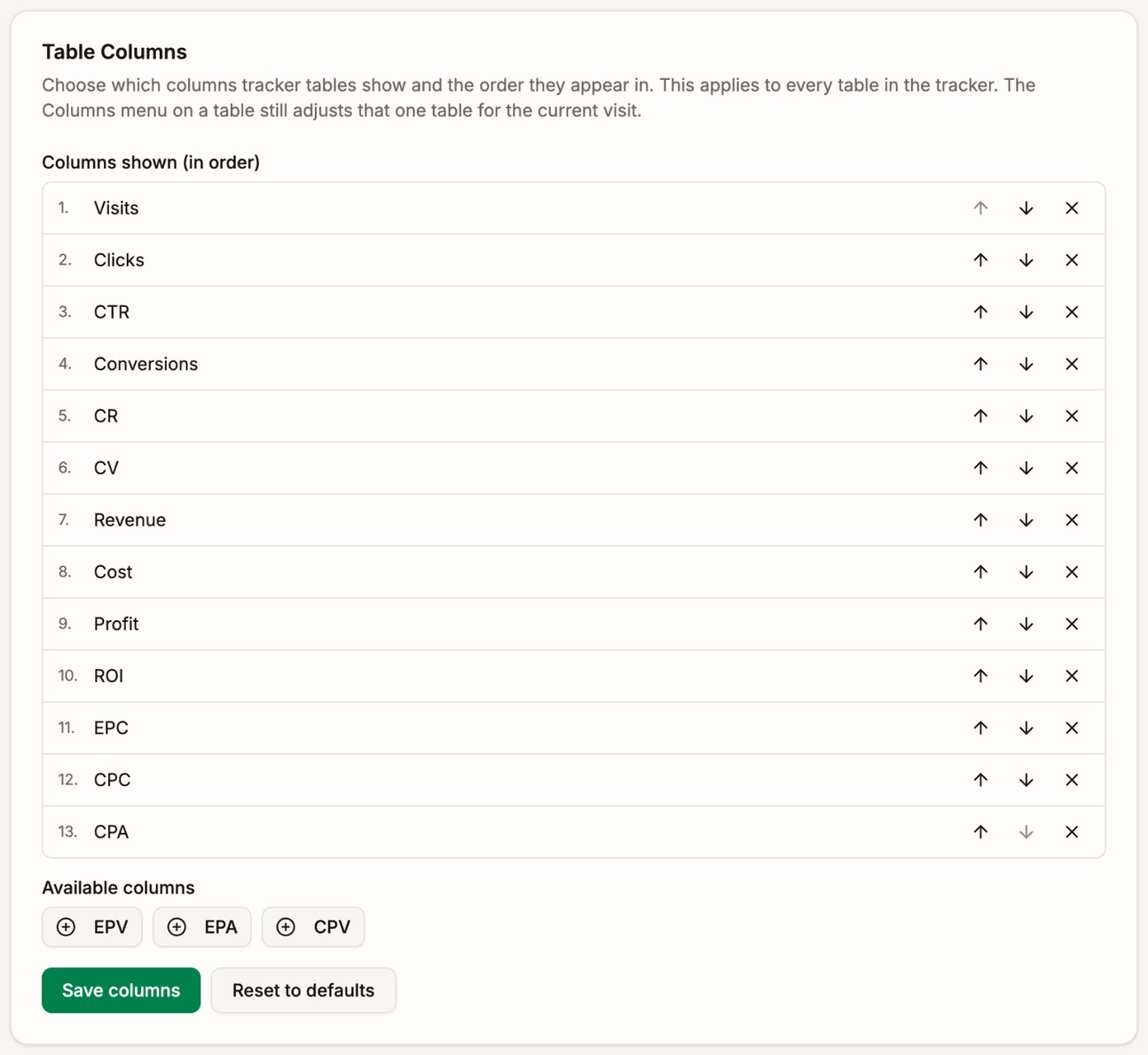
Choose your columns
Columns shown (in order) lists the columns your tables show, from left to right. Available columns lists the ones you've taken out.
- Click × on a column to take it out. It moves to Available columns.
- Click a column under Available columns to add it back. It goes to the end of the list.
- Click the up and down arrows to move a column earlier or later in your tables.
- Click Save columns. A message confirms Table columns saved.
Save columns is only available once you've made a change. Reset to defaults puts every column back in the standard order. Click Save columns afterwards to keep it.
If you take every column out, tables show only their name columns, such as the campaign or the country.
Where it applies
The setting applies to every table of numbers in the tracker:
- Tracker → Analytics
- Your lists, such as Campaigns, Landers, and Offers
- The tables on a campaign's Main and Analytics tabs
- The detail pages of your landers, offers, combinations, traffic sources, and offer sources
It doesn't change the Dashboard or the campaign Heatmap, which have numbers of their own.
Tables pick up the change the next time you open them. If a page is already open, reload it.
Column sets to start from
| You mostly | Keep these columns |
|---|---|
| Buy traffic and optimize placements | Visits, Clicks, CTR, Conversions, CR, Revenue, Cost, Profit, ROI, CPV, EPV |
| Test landers | Visits, Clicks, CTR, Conversions, CV, EPV, Profit, ROI |
| Compare offers | Clicks, Conversions, CR, EPC, EPA, Revenue, Profit |
| Run cost per acquisition campaigns | Conversions, Revenue, Cost, CPA, EPA, Profit, ROI |
Put the column you decide on first, such as Profit or ROI, near the left, so it stays on screen without scrolling. For what each column means, see Reading Your Stats.
Next step
Open Tracker → Analytics to see your new columns. See Analytics.