

 II
II
Tracking Domain
How to use your free tracking domain or connect your own.
This page shows you how to use your free tracking domain and how to connect a domain of your own.
Your tracking domain is the web address in every campaign link you put in an ad. It is also the address your offer source uses to report conversions.
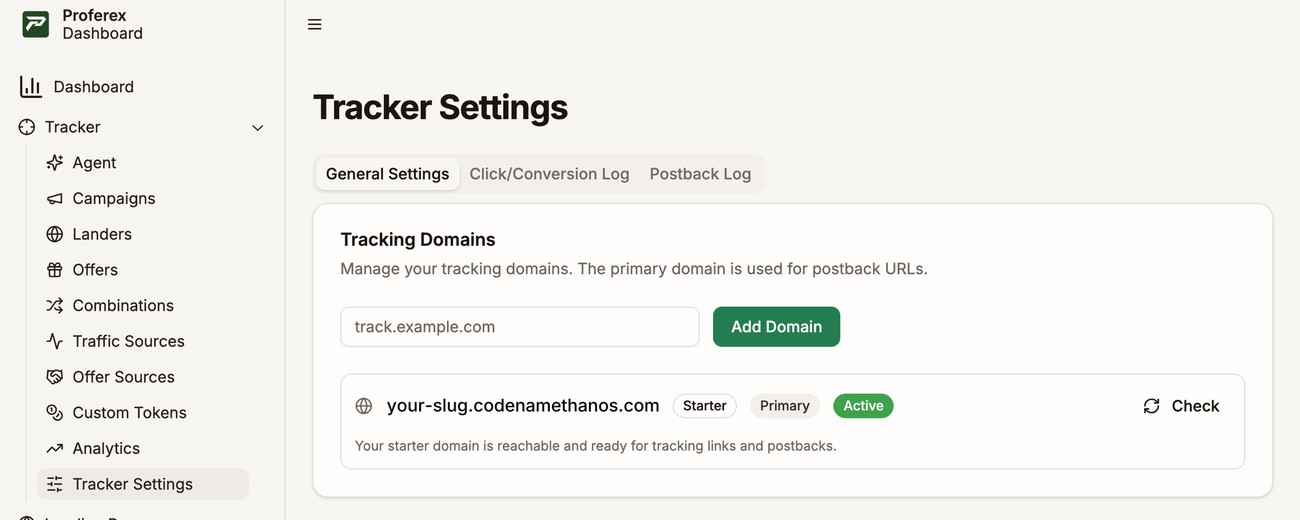
You manage your domains in Tracker → Tracker Settings → General Settings, under Tracking Domains.
Your free tracking domain
Every account comes with a free tracking domain. It is ready the moment you sign up, so you can create campaigns and send traffic straight away.
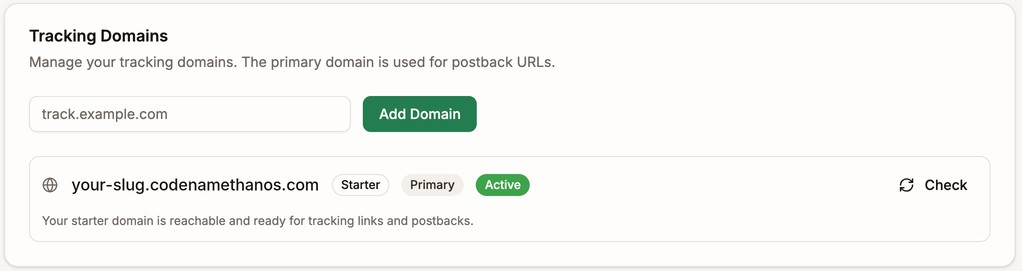
It carries a Starter badge. It stays in your list for good, even after you add your own domain, and it cannot be deleted.
Why use your own domain
Your free domain is a subdomain of a main domain that other Proferex accounts share. That is fine while you test. Once real money goes into ads, a domain of your own is safer.
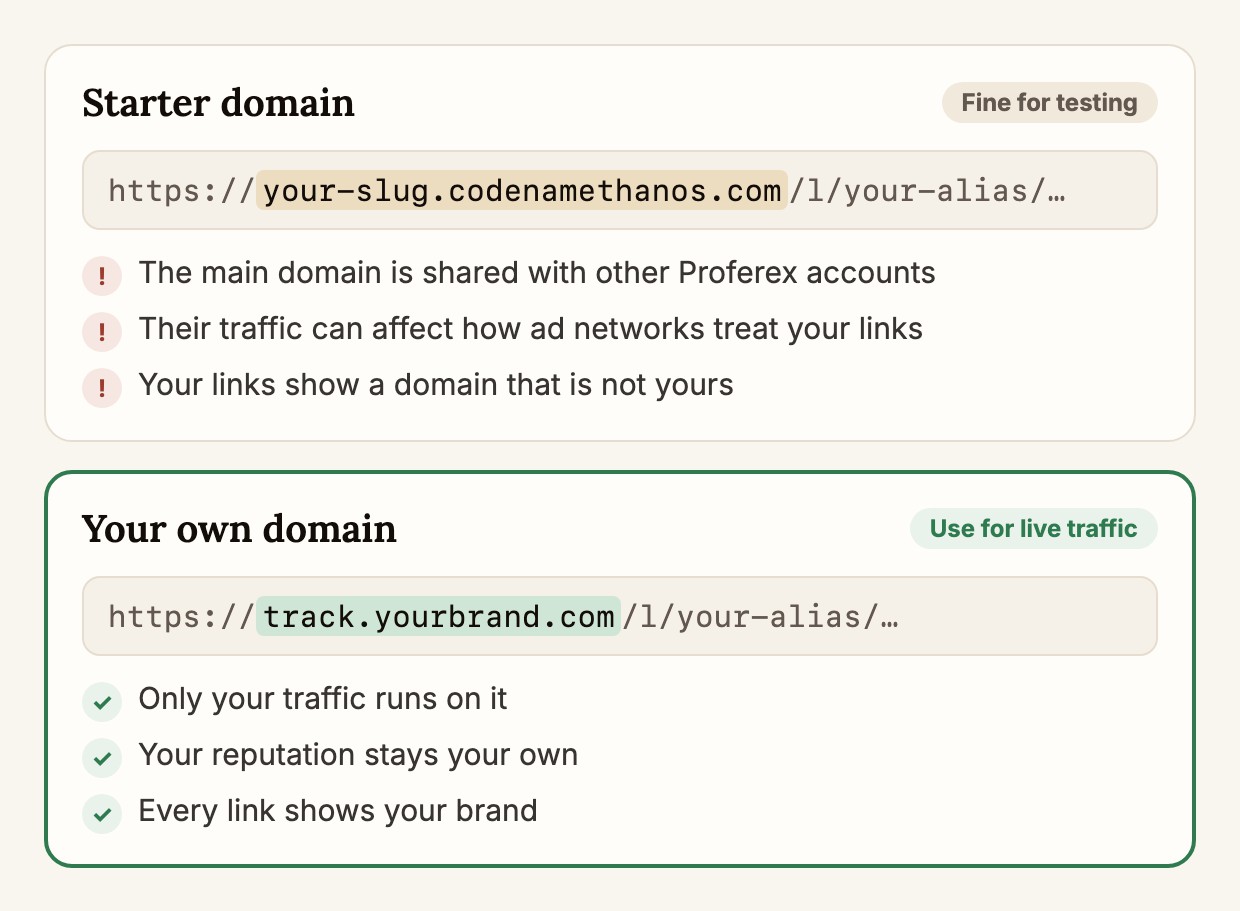
- Your reputation stays your own. If someone else on the shared domain sends poor traffic, ad networks and browsers can start treating every link on it with suspicion. Your own domain only carries your traffic.
- Your links show your brand. People see
track.yourbrand.cominstead of a Proferex address. - You stay in control. You own the domain, so nobody else's choices can affect it.
Set this up before your ads go live. Your campaign links and postback URL include the domain, so switching later means updating every ad and every postback.
Add your own tracking domain
Step 1 - Choose an address
Use a subdomain of a domain you already own, such as track.yourbrand.com or go.yourbrand.com. A subdomain is quicker to set up and keeps tracking apart from your main website.
A root domain such as yourbrand.com also works, but many DNS providers need extra settings for it. See Troubleshooting.
The address can only contain letters, numbers, and hyphens. IP addresses and subdomains of the free Proferex domain are not accepted.
Step 2 - Add it in Proferex
Type your domain in the Tracking Domains box and click Add Domain.
Paste it in any form you like. https://track.yourbrand.com/ is tidied up to track.yourbrand.com for you.
Your domain appears in the list as Pending Verification. That is expected. It stays that way until you add the DNS records in the next step.
Step 3 - Add the DNS records
Click DNS next to your domain. The DNS Setup Required panel lists the records to add, usually one CNAME and two or three TXT records.
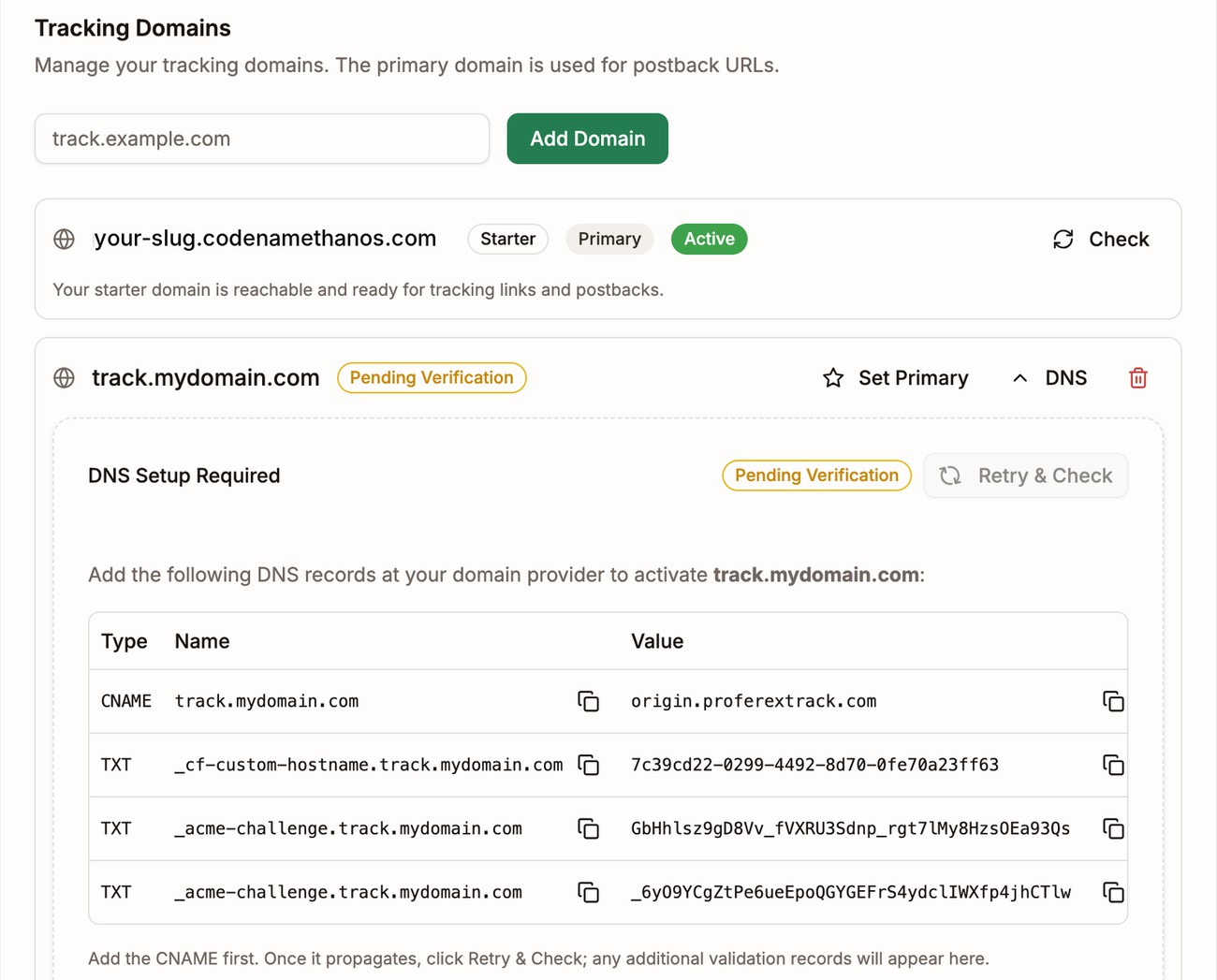
Open the site where you bought your domain, such as GoDaddy, Namecheap, or Cloudflare. Find its DNS settings. They are often called DNS, DNS Records, or Manage DNS. Then add each record:
- Pick the record type from the Type column.
- Copy the Name into the host or name field.
- Copy the Value into the value, target, or content field.
- Save.
Each name and value has a copy button, so you never need to type them.
Add the CNAME first. Some TXT records only show up once the CNAME is in place, so come back to the panel after you save it.
Step 4 - Wait for it to go live
DNS changes usually take a few minutes to reach the rest of the internet. With some providers it takes a few hours.
Keep the settings page open and Proferex checks your domain again on its own. To check straight away, click Retry & Check in the DNS panel.
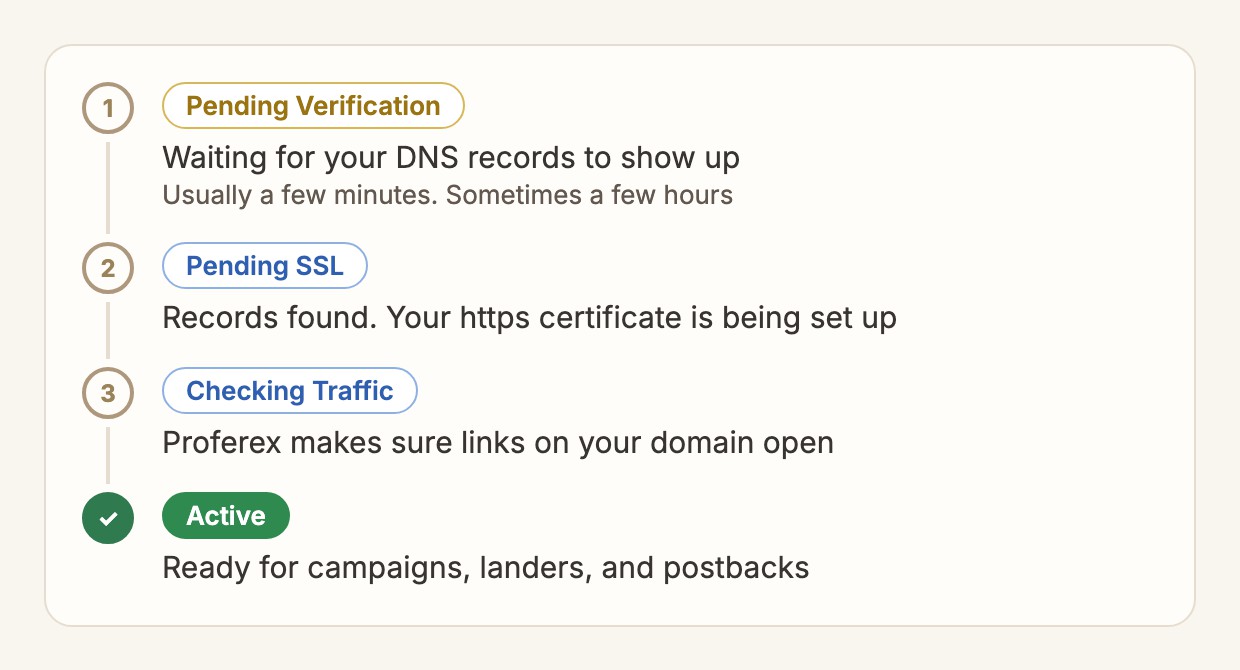
When the status reads Active, your domain is ready. Your https certificate is set up for you, so there is nothing else to do.
If you see Not Reachable or Error instead, see Troubleshooting.
Set your primary domain
Your primary domain is the one Proferex picks for you first, wherever a domain is needed. That includes your campaign links and your postback URL.
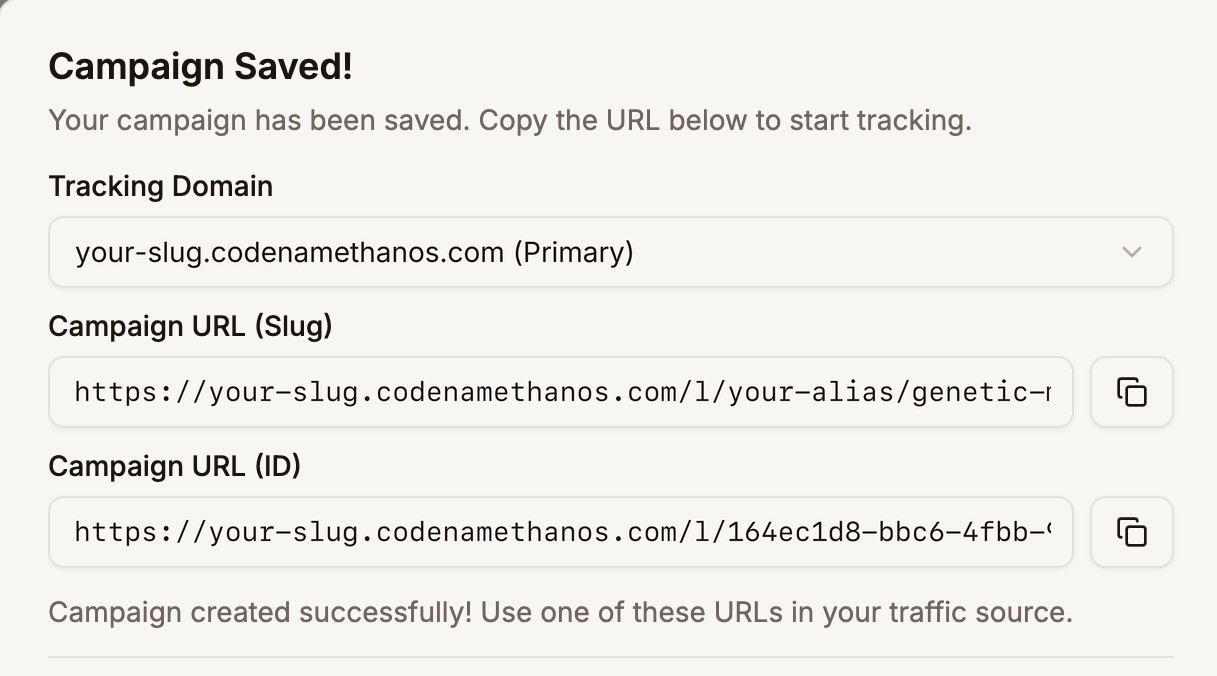
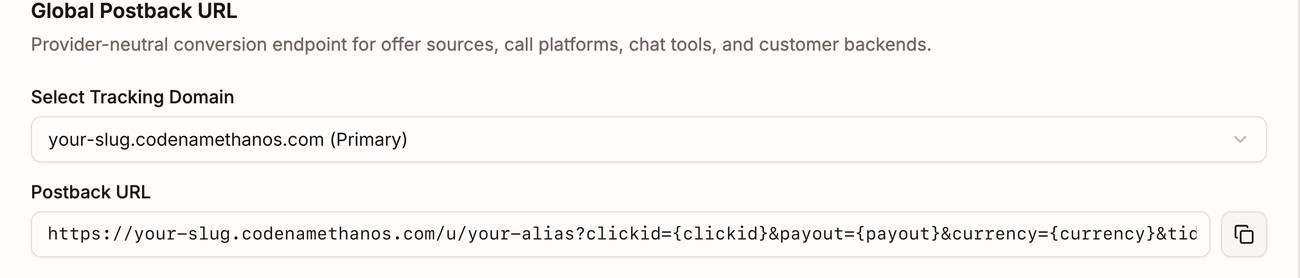
It is only a starting point. You can pick any active domain from the list instead.
Make the domain you use most your primary, so you rarely need to change it. Click Set Primary next to it. Once your own domain is Active, make it your primary so new links use it.
Your primary domain cannot be deleted. To remove it, make another domain primary first.
Troubleshooting
It stays on Pending Verification. Check that each name and value matches exactly, with no extra spaces. Many providers add your domain to the end of the name for you. If yours does, enter only the first part, such as track instead of track.yourbrand.com.
My provider will not accept a CNAME on my root domain. Most providers do not allow it. Look for a record type called ALIAS or ANAME, or a setting called CNAME flattening. If your provider has none of these, use a subdomain such as track.yourbrand.com. It is the easier route.
It shows Not Reachable. The certificate is ready, but links on your domain are not opening. Check that the CNAME is still in place at your provider. If you recently moved your domain to a new provider, add the CNAME there as well. Then click Retry & Check.
It shows Error. The DNS panel explains what went wrong. Fix the records it mentions, then click Retry & Check.
Hours have passed and nothing has changed. Make sure you added the records to the same domain you entered in Proferex, and that you saved them. Some providers have a separate Publish or Apply changes button. If yours does, click it.
Next step
Your landing pages can run on a domain of your own too. See Page Domain.