 Proferex
Ask Junie about your campaigns
Connect Proferex to Junie, then ask about your campaigns from your JetBrains IDE or the Junie CLI.
- Add one entry in mcp.json
- Sign in through your browser
- Check campaign clicks and conversions
> Which campaigns are losing money this week?
Proferex: all campaigns, grouped by Campaign, last 7 days
Proferex: Pop - US - Mobile, grouped by Lander
2 campaigns lost money in the last 7 days. Pop - US - Mobile lost the most: -$31.20 on $166.20 of spend.
| Campaign | Profit | ROI |
|---|---|---|
| Pop - US - Mobile | -$31.20 | -18.77% |
| Pop - DE - Mobile | -$16.90 | -28.69% |
Here's the change I suggest: "Update combination". Open it in Proferex to review the details.
ProferexNo proposed changes yet.
Earlier
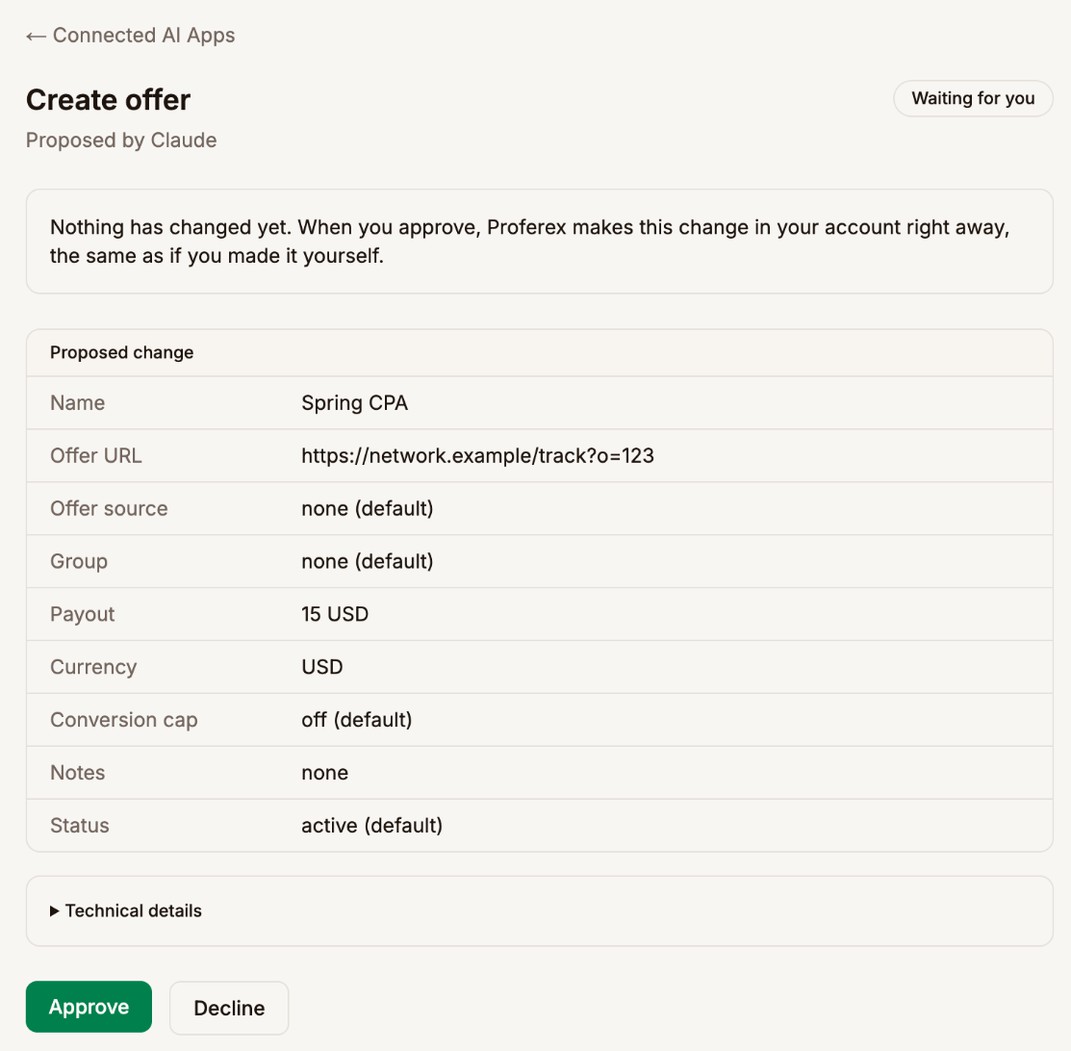
- Create offer: Spring CPAApproved
- Add note: paused 3 zonesApproved
- Delete lander: Old QuizDeclined
Setup
How do you add Proferex to Junie?
Add the connection, then sign in to your Proferex account.
- 1Add Proferex to ~/.junie/mcp/mcp.json, or .junie/mcp/mcp.json for one project:
- 2Type /mcp in Junie. Proferex shows Authorization required. Click Authorize, then Allow access on the Proferex page.
More setup help: JetBrains's guide. If a step has changed, . Also read Connect your AI app.
Connection command or config
Sign in to Proferex in your browser.
{
  "mcpServers": {
    "proferex": {
      "url": "https://www.proferex.com/api/mcp"
    }
  }
}
What you can ask
What can JetBrains Junie do in Proferex?
Check your numbers, sort out a missing conversion or set up your next campaign. Pick a topic and copy an example.
Which campaigns made the most profit in the last 7 days?
Compare my offers in the US on mobile, last 7 days vs last 30 days, in a table.
Which hours of the day are losing money on my US campaign?
See the full list of changes your AI agent can make.
Making changes
Review what gets saved
By default, changes wait for your OK in Proferex. You can choose to confirm small tracker changes in your AI app.
See the details
Review the campaign, offer or post and the values the agent wants to save.
Ask for a revision
Want a different payout or another version of a post? Tell the agent what to change.
Check the result
Ask the agent to read the saved settings or pull a fresh report.
Compare apps
Which one should you use?
Use the app you already work in. Here's where each one runs and how to connect it.
| JetBrains Junie | Cursor | VS Code and Copilot | |
|---|---|---|---|
| Where it runs | JetBrains IDEs and the Junie CLI | Cursor's Agent panel | VS Code's Copilot chat |
| How you connect | mcp.json | mcp.json | MCP: Add Server |
FAQ
Common questions
Still have a question?
Send us a message. We'll help you get connected.
What do I need?
An active Proferex plan and an AI agent that can add a custom MCP server. Some apps only allow that on a paid plan.
Can I ask about one campaign?
Yes. Give it the campaign name and the dates you want to check. You can narrow the report to a country, device, offer or lander too.
Does it use my Proferex AI credits?
No. Your AI agent's own plan covers the chat. Only the Tracker Agent built into Proferex uses credits.
How fresh are the numbers?
It reads the same data as your reports in Proferex. You can ask it to pull the report again for the latest numbers.
How do I disconnect it?
Go to Account → Connected AI Apps → Connections and click Disconnect. The app loses access immediately.
Other AI agents
Use a different AI agent?
Proferex works with any app that can add an MCP server. Here's how to connect each one.
Connect JetBrains Junie to your tracker today.
Choose a Proferex plan, connect JetBrains Junie and ask about your campaigns.
Get started