

 VI
VI
Connect Your AI App with MCP
Use the Proferex MCP server with Claude, ChatGPT, Codex or Grok, and approve the changes it proposes.
Proferex has an MCP server. Connect Claude, ChatGPT, Codex, Claude Code, Grok or Grok Build to it, and your AI app can work with your Proferex account. Then ask it which campaigns made money, or have it set up an offer, without opening Proferex. Every change it wants to make waits for your approval in Proferex.
MCP (Model Context Protocol) is the standard way AI apps connect to other tools. Any AI app that lets you add a custom MCP server can connect, not only the ones on this page.
Before you start
- You need an active Proferex plan.
- You need an AI app that lets you add a custom MCP server. In ChatGPT and Grok this may need a paid plan.
Connecting doesn't use your Proferex AI credits. The AI app's own plan covers the chat.
Connect your app to the Proferex MCP server
Follow the MCP setup for your app, then come back here:
| App | Guide |
|---|---|
| Claude and Claude Code | Claude and Claude Code MCP |
| ChatGPT and Codex | ChatGPT and Codex MCP |
| Grok and Grok Build | Grok and Grok Build MCP |
The Proferex MCP server address is always:
https://www.proferex.com/api/mcpCopy it exactly, including www. The address without www doesn't connect.
Other AI apps
Any AI app that lets you add a custom MCP server connects the same way: use the address https://www.proferex.com/api/mcp, choose OAuth sign-in if it asks, and allow access on the Proferex page.
What your AI app can read
For example:
- Performance. Visits, clicks, conversions, cost, tracked revenue run through Proferex, and profit, broken down by campaign, offer, lander, traffic source, country, device, day, and anything else you can group a report by.
- Your setup. Your campaigns, offers, landers, combinations, traffic sources, offer sources, and custom tokens, and how each one is configured.
- Your pages. Your Published Pages, the files in your lander uploads, and the list of your blog articles.
- This manual. It can look up how Proferex works, so it explains things the way Proferex actually does them.
Stats reach your AI app within a minute, the same as your reports.
Which campaigns made the most profit in the last 7 days?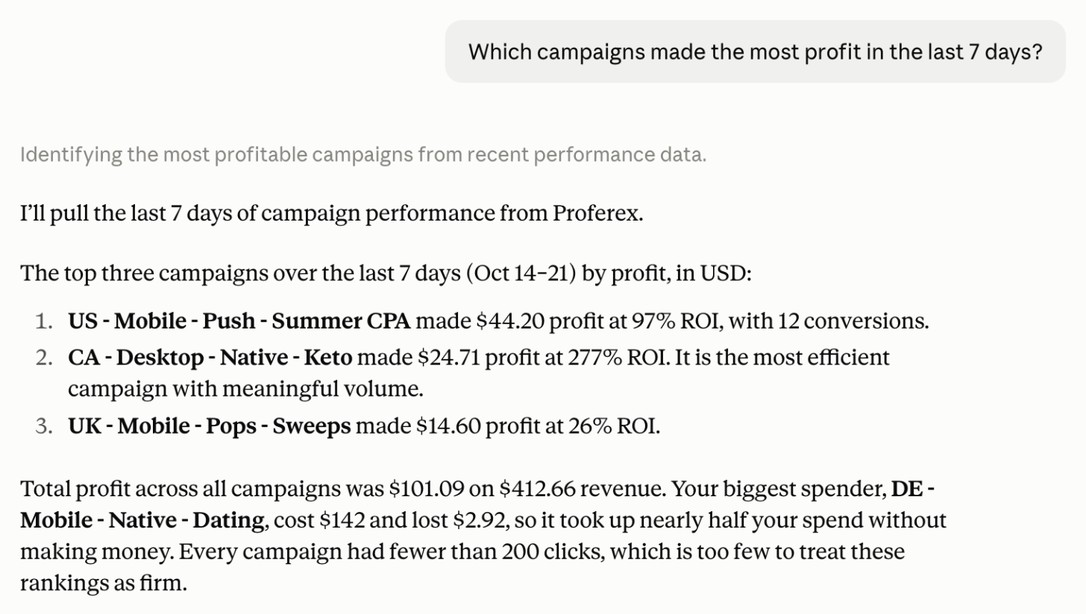
Which campaigns lost money in the last 7 days, and which lander did each one use?Compare my offers in the US on mobile, last 7 days vs last 30 days, in a table.What your AI app can change
Your AI app can propose the same Tracker changes as the Tracker Agent:
| Item | What it can do |
|---|---|
| Offers | Create, update, duplicate |
| Landers | Create, update name, notes, redirect mode and group, duplicate |
| Published Pages | Move pages between groups |
| Combinations | Create, update rotation paths and rules, duplicate |
| Campaigns | Create, update, duplicate, change status |
| Offer sources | Create, duplicate |
| Traffic sources | Create, update, duplicate |
| Custom tokens | Add, edit and delete token definitions and value transformations |
Create an offer called "Summer CPA" with URL https://network.example/track?o=123 and a $15 payout.Most AI apps ask before they send a change. The change then goes to Proferex for your approval. Nothing is created yet.
Approve changes in Proferex
Your AI app never changes anything on its own. When it wants to make a change, it sends the change to Proferex and gives you a link to review it. Nothing happens until you approve it.
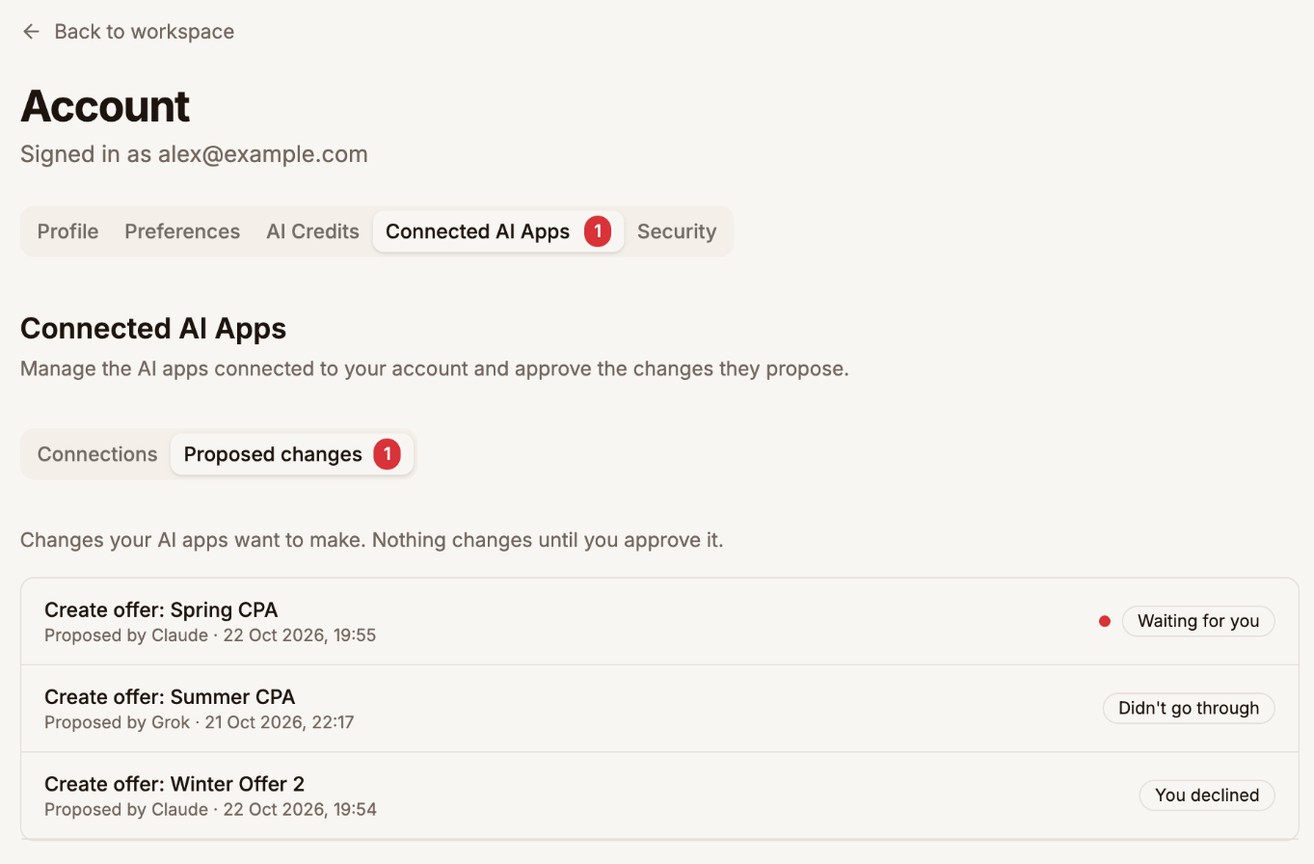
- Open the link from your AI app. You can also find every waiting change under Account → Connected AI Apps → Proposed changes. A red number shows how many are waiting.
- Read the Proposed change. It shows which app proposed it and exactly what will be created or changed.
- Click Approve to make the change, or Decline to drop it.
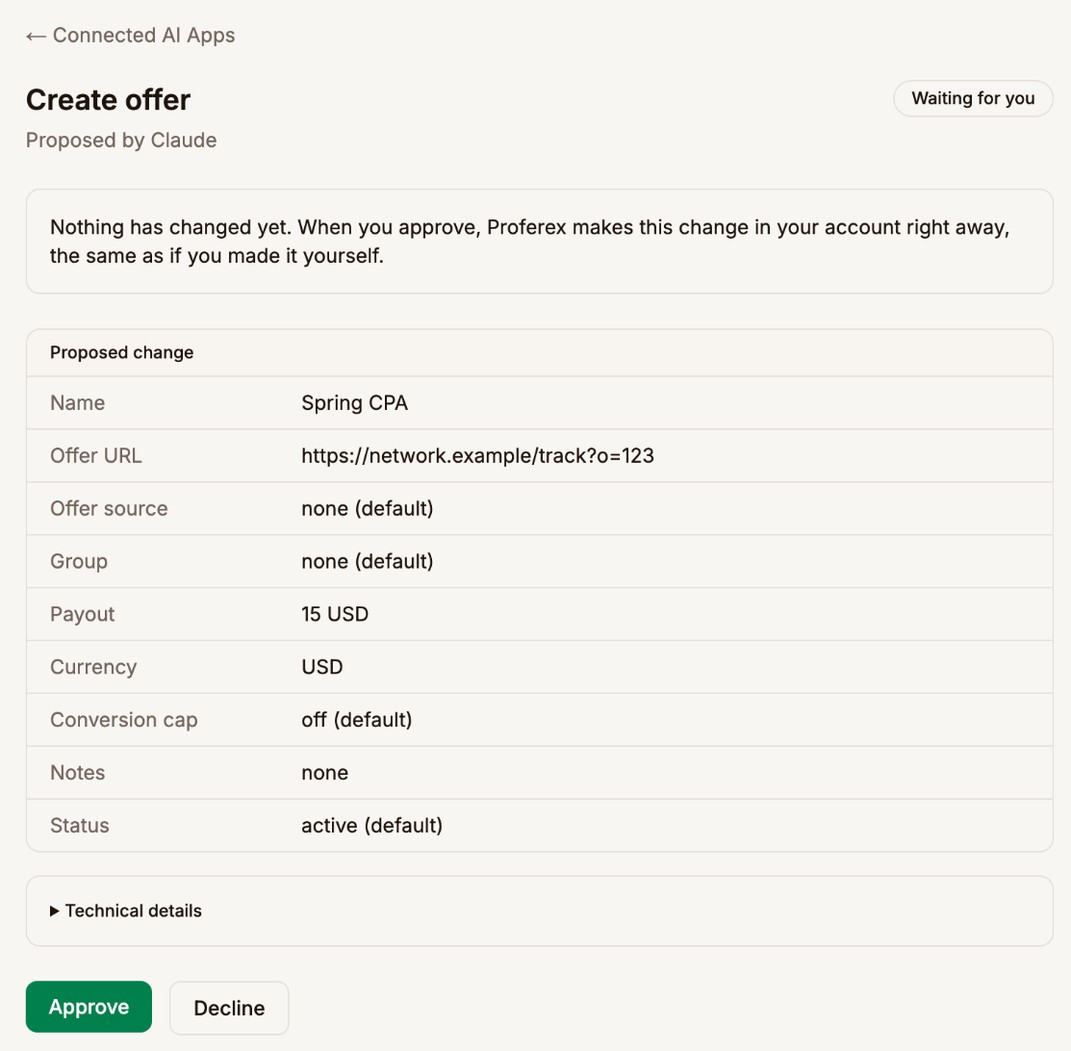
Your AI app can check whether you approved, so you can go back to the chat and carry on.
- A change waits 7 days. After that it expires and can't be approved. Ask your AI app to propose it again.
- Up to 20 changes can wait at once. Approve or decline some before your AI app proposes more.
To open Account, click your name at the bottom of the sidebar.
Disconnect an app
- Go to Account → Connected AI Apps → Connections. Each connected app shows when it connected and when it was last used.
- Click Disconnect next to the app, then confirm. With more than one app connected, you can also click Disconnect all.
If you see the same app twice, it was connected twice. The one with the latest Last used is the one in use; you can disconnect the other.
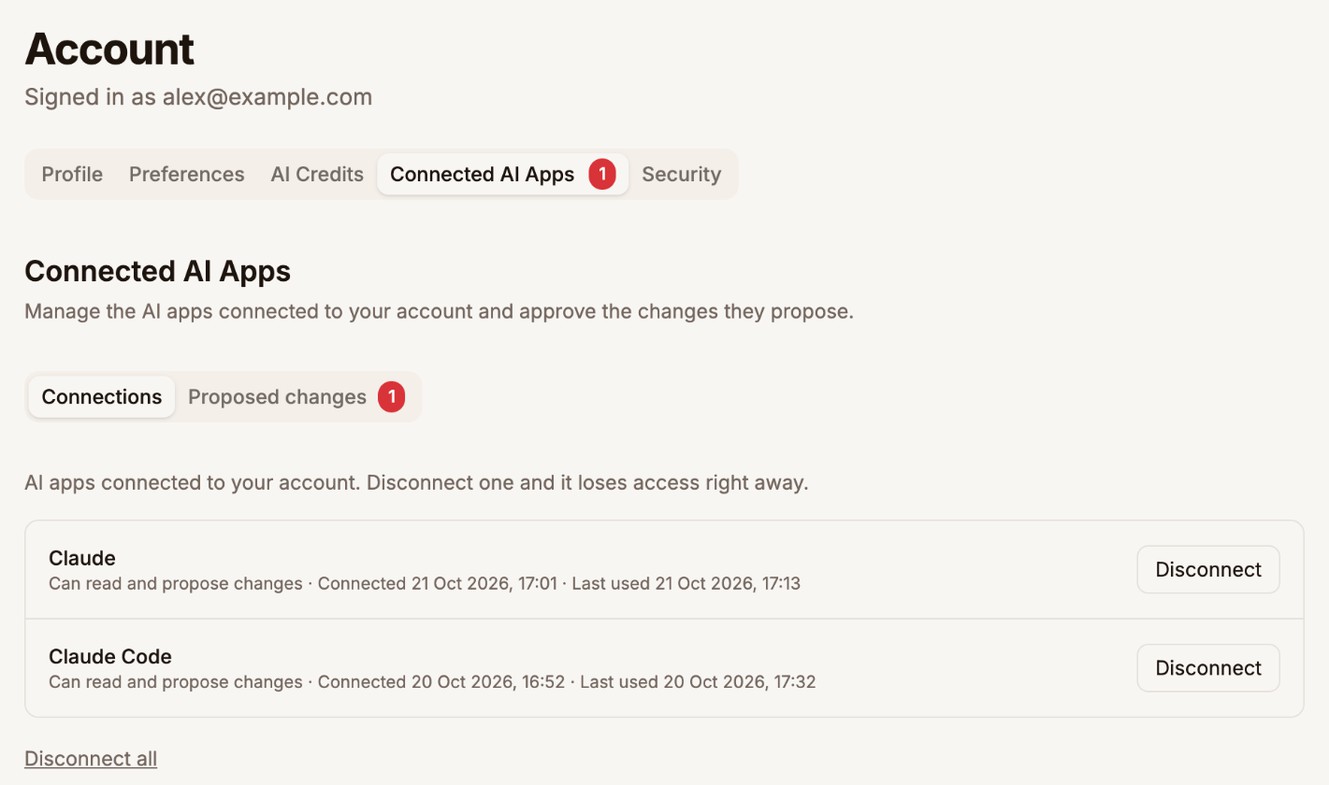
The app loses access immediately. To use it again, connect it again.
Limits
- Deleting items. Your AI app can't delete offers, landers, combinations, campaigns or sources. Custom token definitions and transformations are the exception.
- Ad spend. It can't pause or resume campaigns at your traffic source, because that spends real money. Do that in Proferex.
- API keys. It can't set traffic source API keys. Add them in the Traffic Sources screen.
- Lander type and page. It can't change a lander's type or the page or URL it points to. Change those on the lander itself.
- Lander files. It can read the files in your lander uploads, but it can't edit them.
- Speed. A connection can make up to 60 requests a minute. If your AI app says it hit a limit, wait a minute and ask again.
If something goes wrong
- The app connects but can't propose changes. It was connected with read access only. Disconnect it under Account → Connected AI Apps → Connections, then connect it again. In ChatGPT, check that write is ticked under Default scopes.
- The app can't connect at all. Check the address is
https://www.proferex.com/api/mcp, withwww. - The wrong Proferex account appears. Click Deny, sign out of Proferex in your browser, sign in to the right account, then connect again.
- A change didn't go through. The approval page shows the reason, for example an offer with the same name already exists. Ask your AI app to fix it and propose it again.