

 VI
VI
ChatGPT and Codex MCP
Add the Proferex MCP server to ChatGPT and Codex.
In ChatGPT, add Proferex as a custom MCP server under Plugins. In Codex, add the Proferex MCP server from the terminal. Each needs its own connection.
Add the Proferex MCP server in ChatGPT
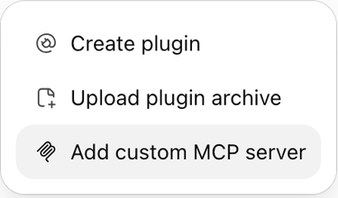
- In ChatGPT, open Plugins, click Add and choose Add custom MCP server.
- Enter
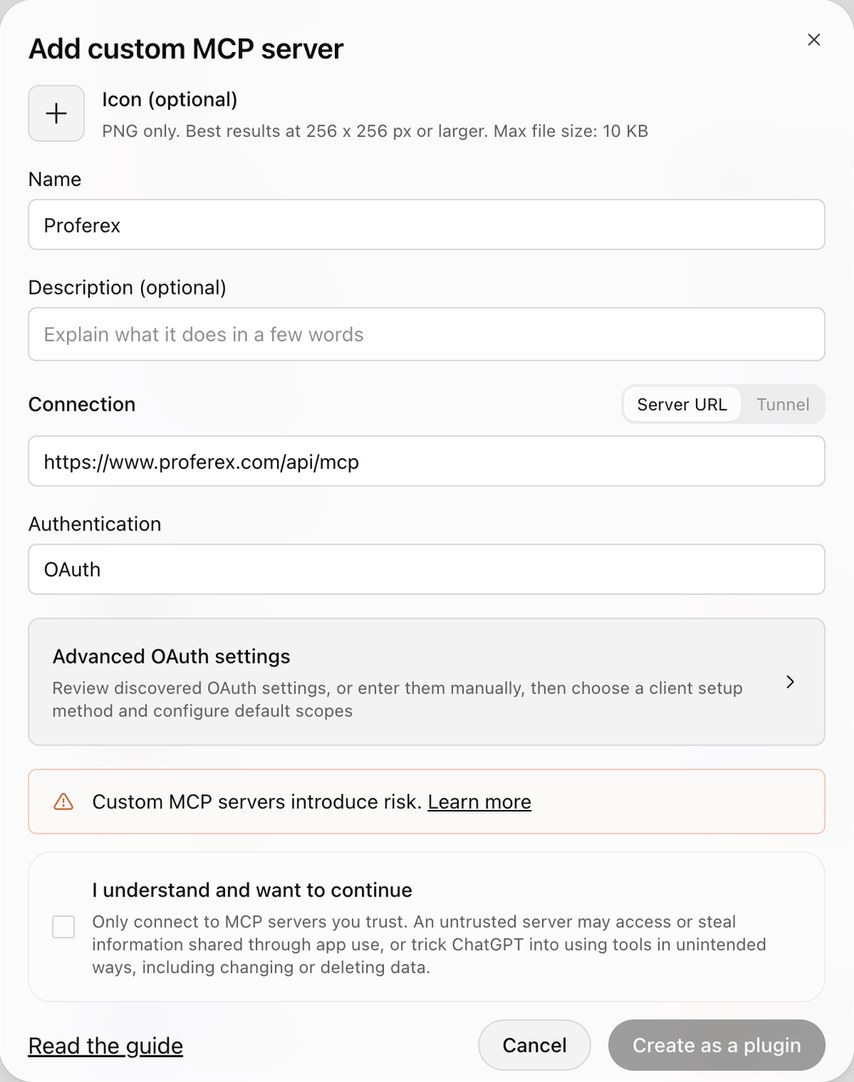
Proferexas the name, pastehttps://www.proferex.com/api/mcpas the server URL, and leave Authentication on OAuth.
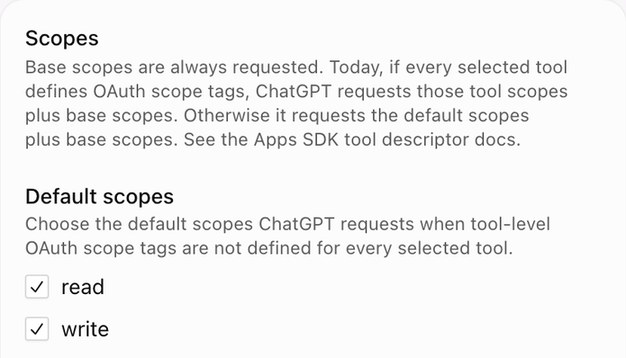
- ChatGPT finds the sign-in settings by itself. Open Advanced OAuth settings only to check that both read and write are ticked under Default scopes. Without write, ChatGPT can't propose changes.
- Tick I understand and want to continue, then click Create as a plugin.
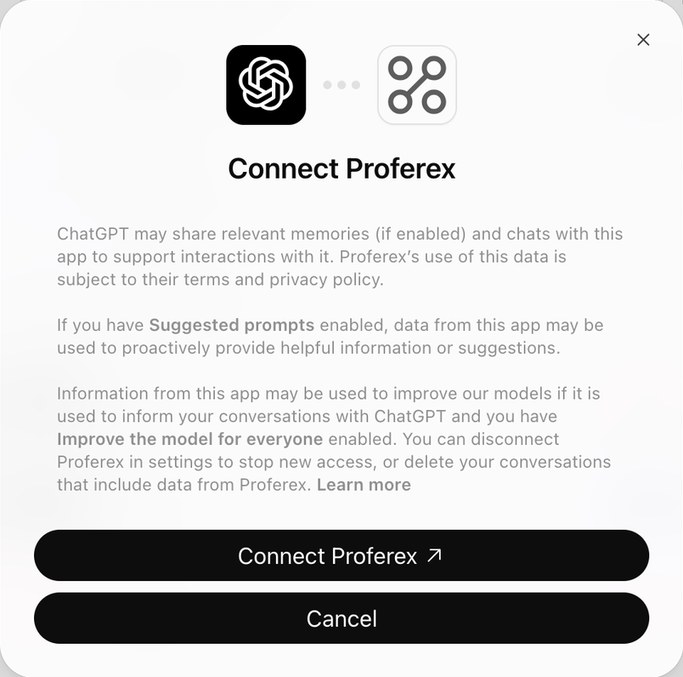
- Click Connect Proferex. The same Proferex page opens, this time asking Connect ChatGPT to Proferex? Check the account and click Allow access.
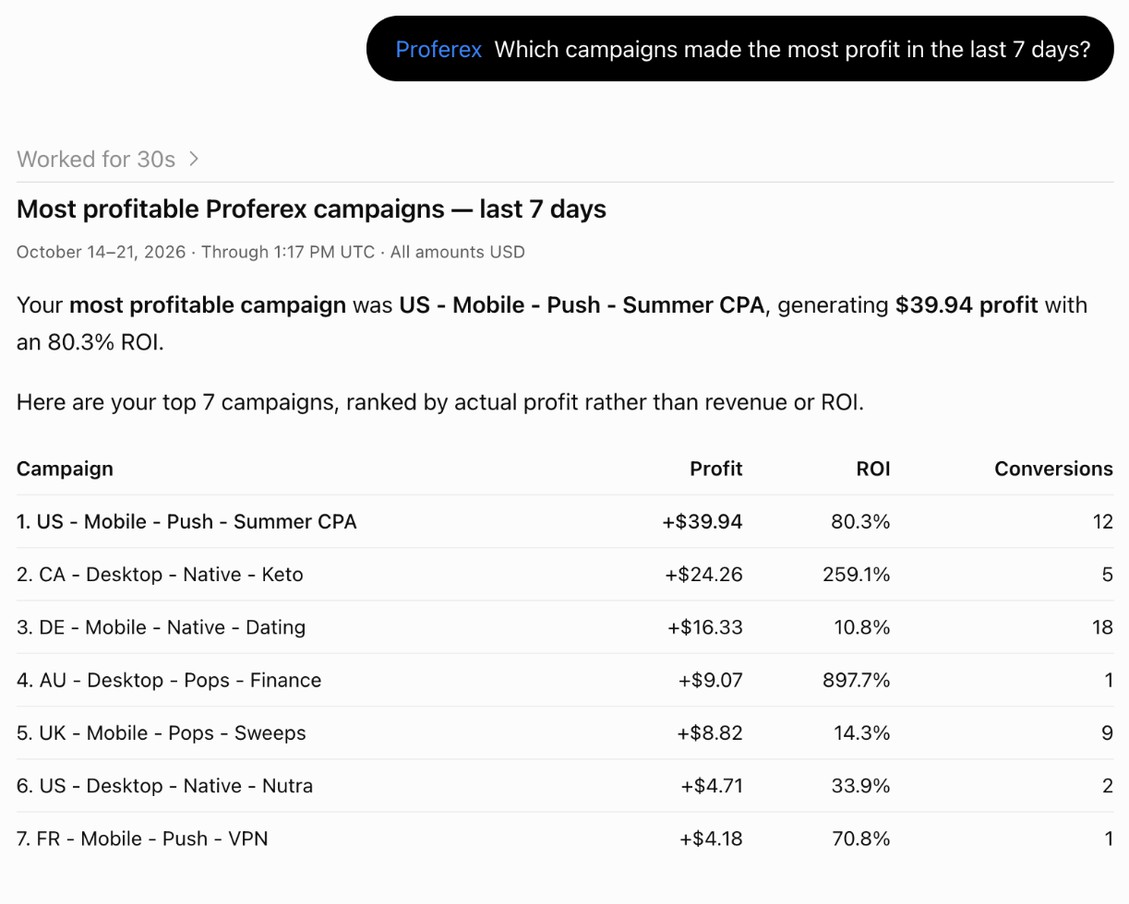
To use it, type @Proferex in the message box, pick Proferex from the list, then type your question.

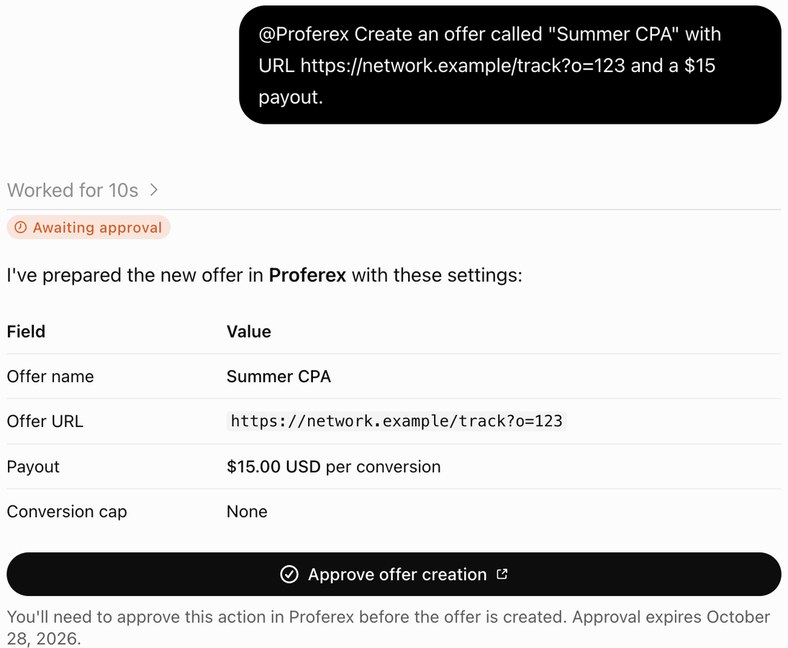
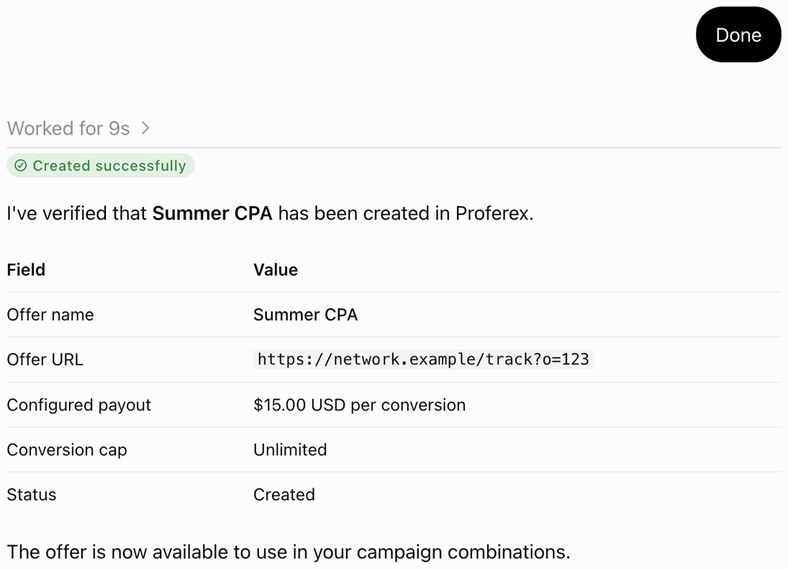
When you ask for a change, ChatGPT shows Awaiting approval with a button such as Approve offer creation. The button opens the approval page in Proferex. After you approve, tell ChatGPT and it checks that the change was made.
Add the Proferex MCP server in Codex
In a terminal, run:
codex mcp add proferex --url https://www.proferex.com/api/mcpCodex finds the Proferex sign-in by itself and prints a link. Your browser opens the same Proferex page, asking Connect Codex to Proferex? Click Allow access. When the browser says Authentication complete, close the tab and go back to the terminal.
Start Codex with codex and type /mcp to check that proferex is listed. Then ask your question in the same session.
If the link doesn't open by itself, copy it from the terminal into your browser. To sign in again later, run codex mcp login proferex.
Next step
See Connect Your AI App with MCP for what your AI app can read and change, how to approve its changes in Proferex, and how to disconnect it.