

 VI
VI
Write Blog Articles with MCP
Have your AI app write and edit blog drafts, and approve publishing in Proferex.
With the Proferex MCP server connected, your AI app can work on your Proferex blog: list your articles, write new drafts and edit them. Anything that changes what readers see, such as publishing, waits for your approval in Proferex.
Connect your AI app first. See Connect Your AI App with MCP.
What your AI app can do on your blog
| Action | What happens |
|---|---|
| List articles and categories | Answers straight away |
| Write a new draft | Saved as a draft. Nobody can see it yet |
| Edit a draft | Updates the draft |
| Create a category | Adds the category |
| Publish, unpublish, or edit a live article | Waits for your approval in Proferex |
Your AI app can't delete articles. Delete them in the blog editor.
If you have more than one blog, name it in your request, for example "on my Proferex blog".
Write a draft
Ask in plain language:
Write a short draft blog article for my Proferex blog called "3 ways to cut campaign cost", about 300 words. Save it as a draft, don't publish.Your AI app shows what it wants to save. In Claude, click Allow once.
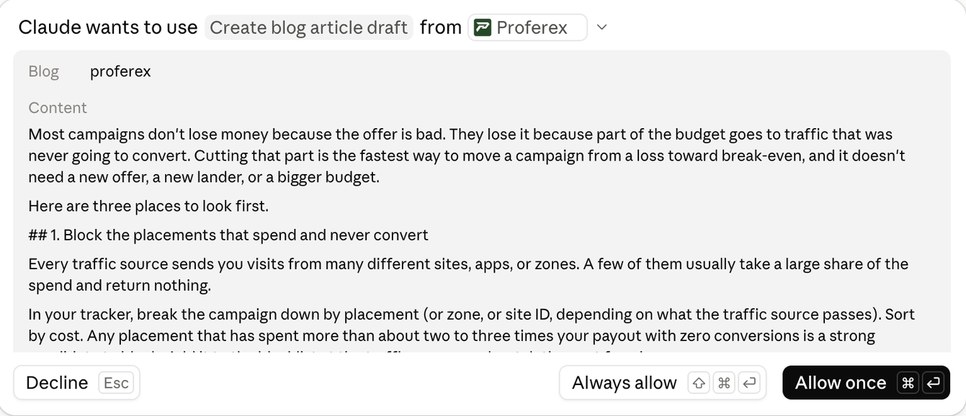
The draft is saved, and your AI app gives you a link to open it in the editor.

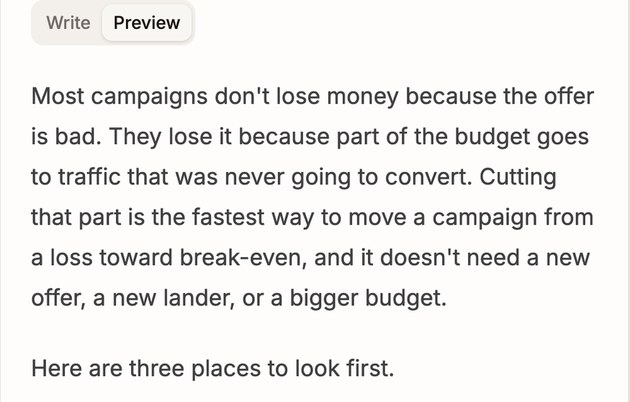
To change it, ask again in the same chat, for example:
Make the intro shorter and add a conclusion.Publish an article
Publish that article.Your AI app sends the request to Proferex and gives you a link. The article is not live yet.
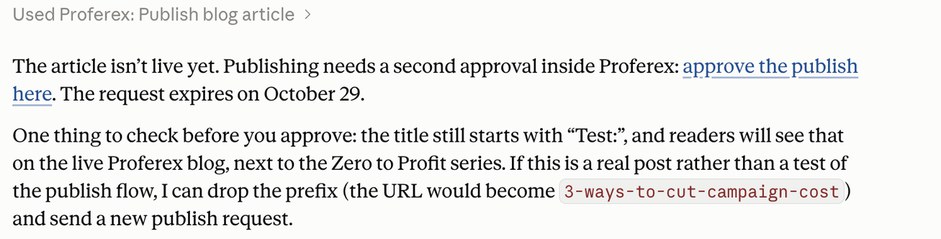
Open the link, or go to Account → Connected AI Apps → Proposed changes, and click Approve to publish or Decline to keep it as a draft.
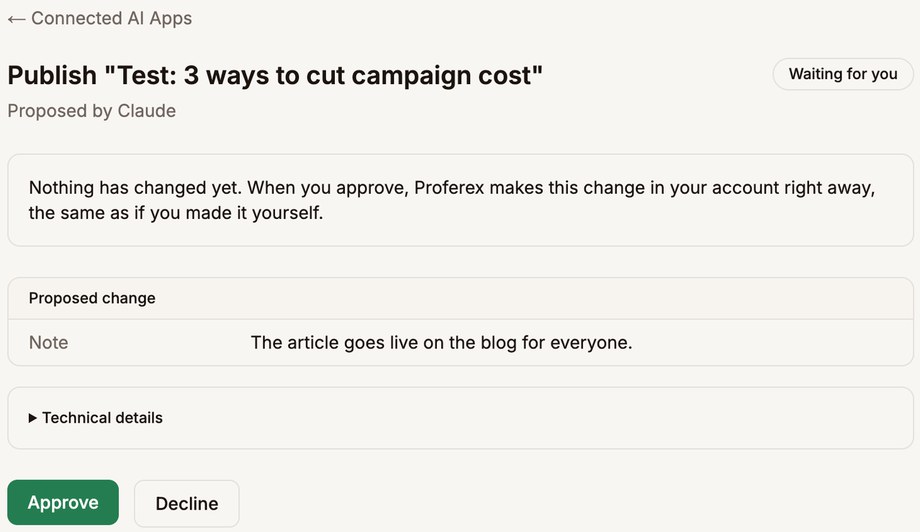
The same applies to unpublishing an article and to editing one that is already live.
Next step
Ask your AI app to list your drafts, pick one, and have it tighten the intro before you publish.