

 VI
VI
Grok and Grok Build MCP
Add the Proferex MCP server to Grok and Grok Build.
In Grok, add Proferex as a custom MCP connector on grok.com. Grok Build then uses the same MCP connection.
Add the Proferex MCP connector in Grok
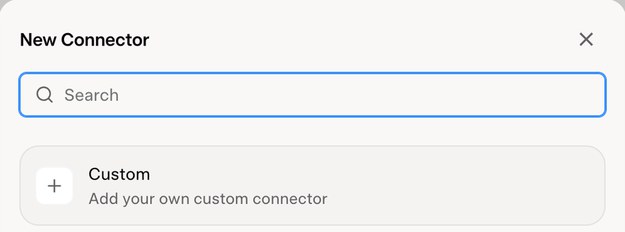
- Go to grok.com/connectors, click New Connector and choose Custom.
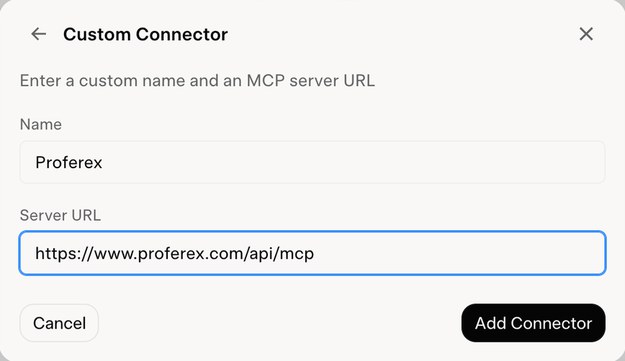
- Enter
Proferexas the name andhttps://www.proferex.com/api/mcpas the server URL, then click Add Connector.
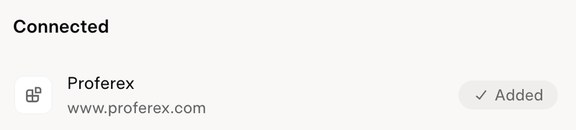
- A Proferex window opens, asking Connect Grok to Proferex? Check the account and click Allow access. Proferex then shows under Connected.
To use it, type @Proferex in a Grok chat, pick Proferex under Connectors, then ask your question. When you ask for a change, Grok gives you a link to approve it in Proferex.
Use Proferex in Grok Build
Grok Build, Grok's terminal app, picks up the connectors you added on grok.com when you sign in with the same Grok account. There is no separate MCP setup.
- Start Grok Build and type
/mcps. - Under Managed by grok.com, check that Proferex shows [ready] with its tools listed.
- Ask your question in the same session.
To add or remove the Proferex MCP connector, change it on grok.com. Grok Build follows.
Grok Build can run in a mode that uses tools without asking you first (shown as always-approve). Proferex still holds every change for your approval in Proferex, so nothing in your account changes until you approve it there.
Next step
See Connect Your AI App with MCP for what your AI app can read and change, how to approve its changes in Proferex, and how to disconnect it.