

 IV
IV
Offer Sources
Add the affiliate networks and advertisers you get your offers from.
This page shows you how to add the places you get your offers from, such as an affiliate network like MaxBounty or ClickDealer, or an advertiser you work with directly.
Add one for each affiliate network or advertiser you work with. Then link your offers to it, and you can compare them side by side: which one sends you the most conversions, and which one pays best for your traffic.
Go to Tracker → Offer Sources to see yours, and click Create Network to add one.
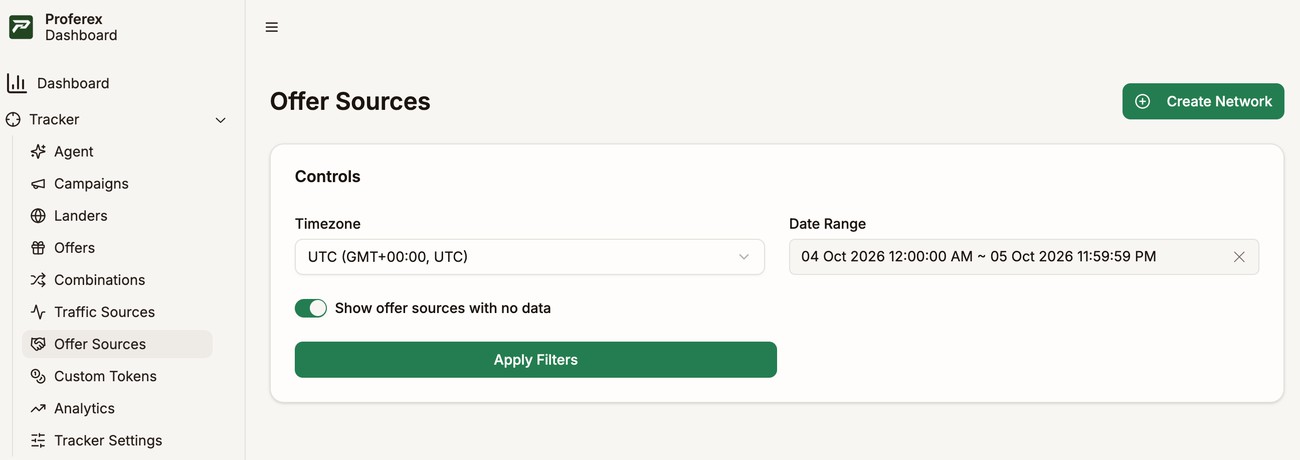
Add an offer source
Type the name of the affiliate network or advertiser, and click Create Network.
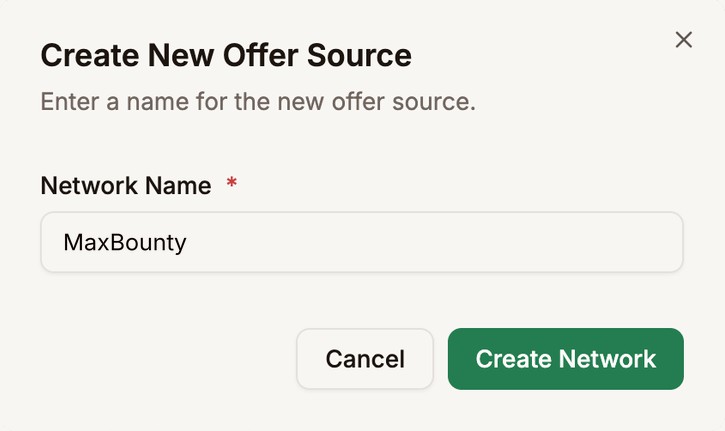
That's it. There is nothing else to set up here.
Link your offers to it
When you create or edit an offer, pick the offer source in the Offer Source (Optional) field. Each offer belongs to one offer source.
You can skip it, but then that offer doesn't count toward any offer source in your reports.
Get your conversions
Your offer source tells Proferex about each conversion through a postback. You have one postback URL for all your offer sources: paste it into each one's postback settings. See Postbacks.
See how each one performs
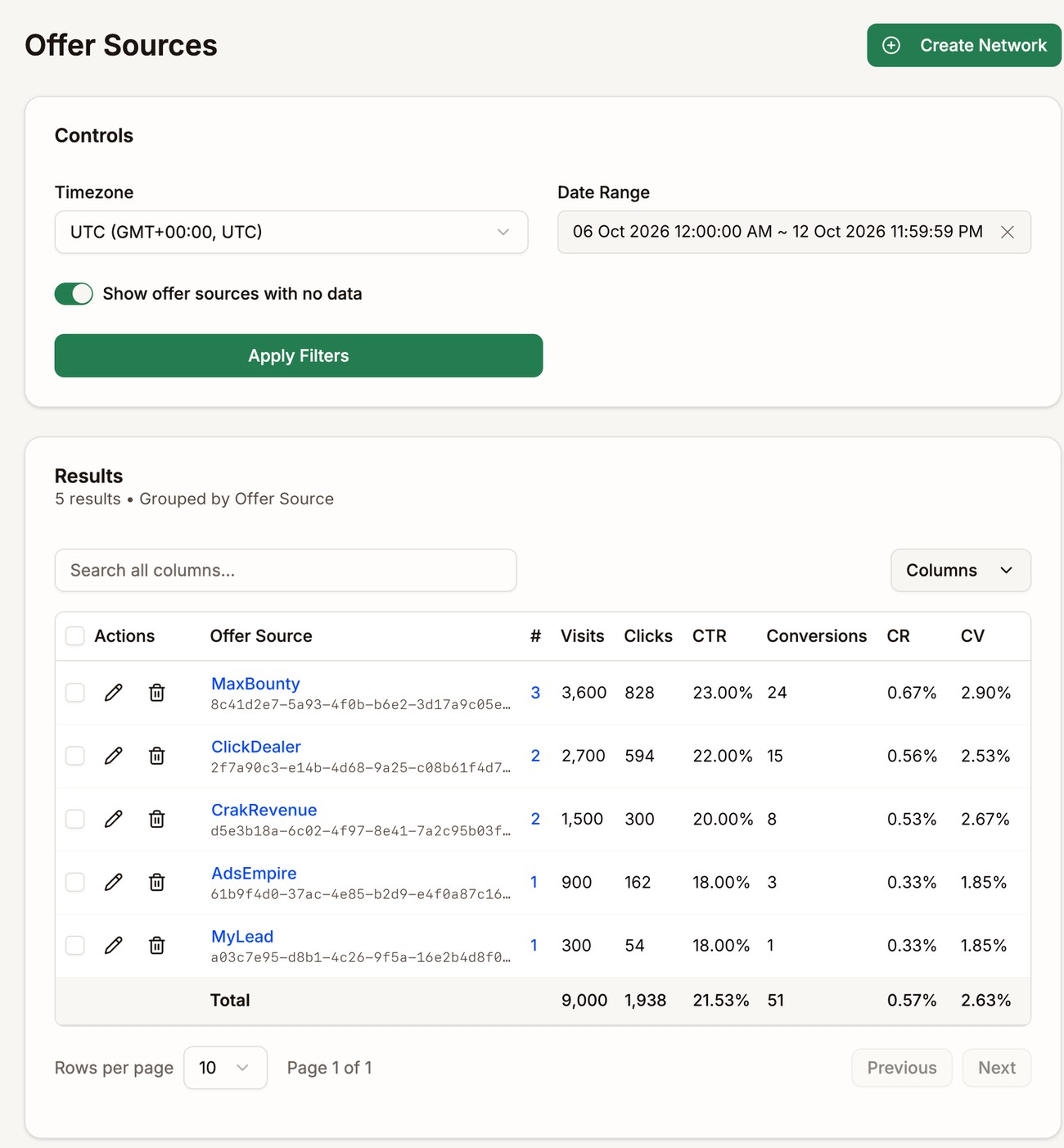
The list shows each offer source's visits, clicks, conversions, and the rest of your numbers for the date range you pick. Click a name to break its numbers down by offer, campaign, country, and more. See Reading Your Stats and Drill-Downs.
Edit, duplicate, or delete
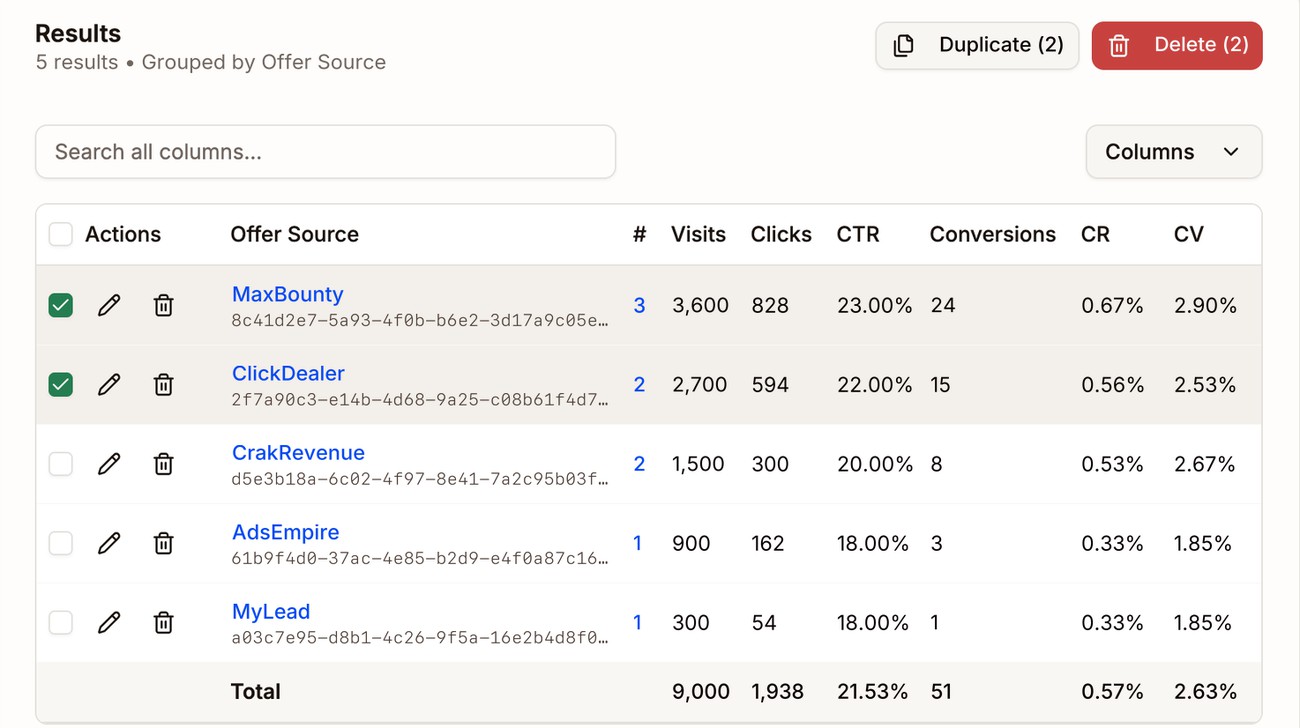
- Rename it with the pencil in its row, or with Edit Network on its own page.
- Delete it with the bin in its row. You can only delete an offer source once no offers are linked to it, so move or delete its offers first.
- Tick several rows to duplicate or delete them all at once. Duplicate and Delete appear at the top, with the number you picked. You can also duplicate one from the ⋯ menu on its own page.
Next step
Add the offers you want to promote. See Offers.