

 VII
VII
Detail Pages
See how a lander, offer, combination, or source does across all your campaigns.
This page shows you how to use your lists, and the detail page each lander, offer, combination, traffic source, and offer source has, to see where it makes money and where it doesn't.
A campaign report answers "how is this campaign doing?". A detail page answers "how is this offer doing, across every campaign that uses it?". Use it before you add an offer to a new campaign, or when an offer, lander, or traffic source starts to slip.
Your lists
Tracker → Landers, Offers, Combinations, Traffic Sources, and Offer Sources each show one row for each item, with its numbers for the date range you pick.
| List | Filters |
|---|---|
| Campaigns | Filter by Combination, Filter by Traffic Source, Filter by Group, Filter by Country. By Group and By Country add up the campaigns in each group or country. |
| Landers | Filter by Lander Type, Filter by Redirect Mode, Filter by Lander Group |
| Offers | Filter by Offer Source, Filter by Offer Group |
| Combinations, Traffic Sources, Offer Sources | None |
- Show with no data, such as Show offers with no data, is on at first. Turn it off to hide the items with no visits in the date range.
- On every list but Campaigns, the # column shows how many campaigns use each item. Click the number to see which ones, and click a campaign to open it.
- Hover over a name to copy its name, ID, or URL, open its settings with Edit, or open its page in a new tab with Details.
- Click a name to open its detail page.
Click Apply Filters after changing the date range or a filter.
A detail page
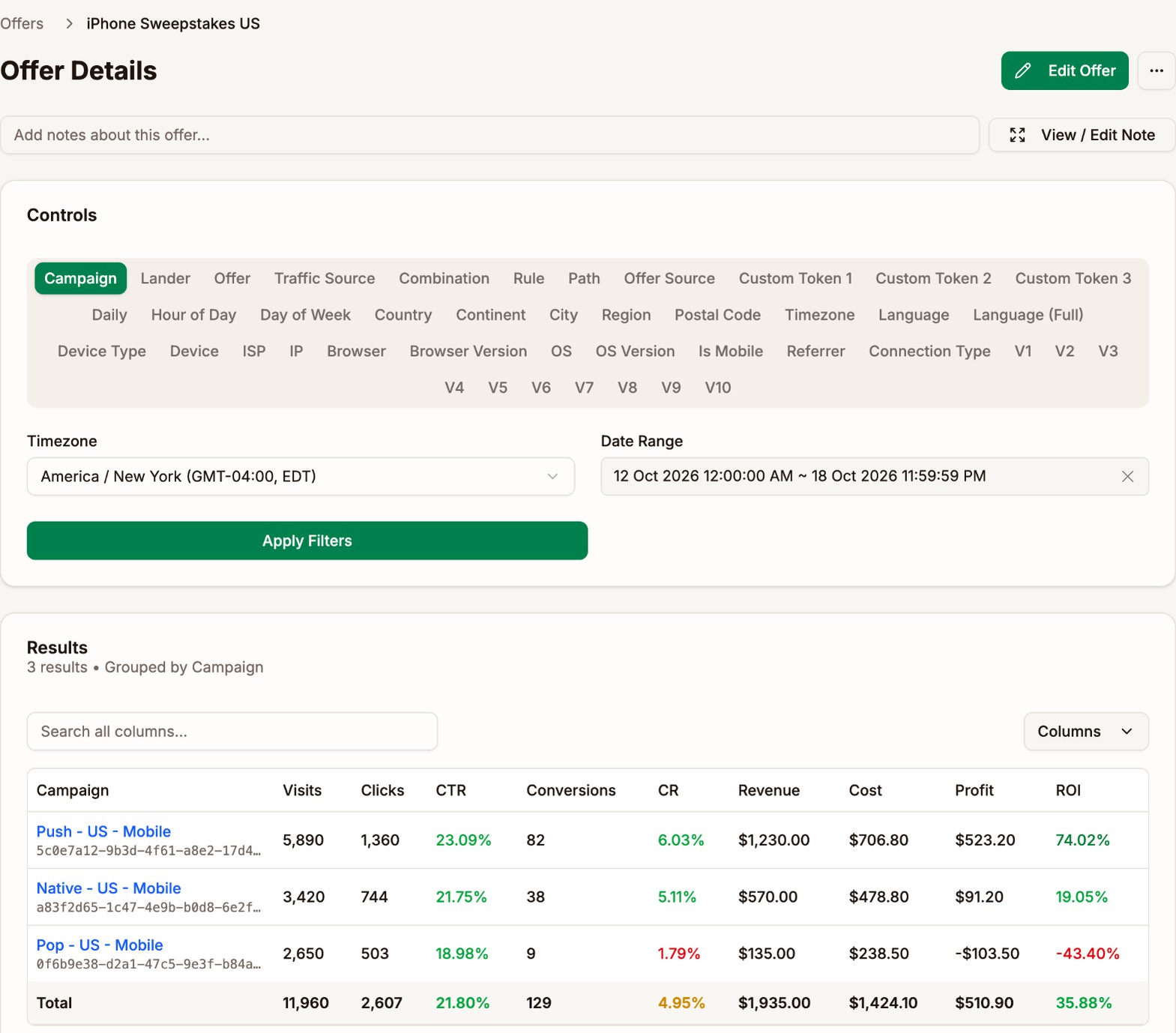
At the top are the item's name, an Edit button for its settings, and ⋯ with Duplicate and Delete. Landers and offers also have a notes field. Click View / Edit Note to write one, such as the payout you agreed or the date you changed the page.
Below that, a row of tabs breaks the item's numbers down. Click a tab and the report changes straight away. The tabs are the same details you can group by on the Analytics page. See Group By.
| Page | Opens on | Tabs to start with |
|---|---|---|
| Lander Details | The lander's totals | Campaign, Offer, Country, OS |
| Offer Details | The offer's totals | Campaign, Lander, Country, Daily |
| Combination Details | The combination's totals | Rule, Path, Lander + Offer, Campaign |
| Traffic Source Details | The traffic source's totals | Campaign, V1 to V10, Hour of Day, Connection Type |
| Offer Source Details | The offer source's totals | Offer, Campaign, Daily |
Lander + Offer is on the combination, traffic source, and offer source pages. It shows each lander and offer pair.
Examples
Find the campaigns where an offer loses money
Open the offer and click Campaign. In the example above, iPhone Sweepstakes US makes a 74% ROI on Push - US - Mobile and loses 43% on Pop - US - Mobile.
The offer is fine. Pop traffic is the problem for this offer. Open Pop - US - Mobile and give its combination a different offer, or check the campaign's spots first. See Campaign Reports.
Check a lander before you reuse it
Open the lander and click Offer, then Country.
| Offer | Visits | CTR | ROI |
|---|---|---|---|
| iPhone Sweepstakes US | 3,680 | 27.17% | 90.22% |
| PS5 Sweepstakes US | 1,530 | 31.05% | 110.08% |
A lander with a high CTR on several offers warms visitors up well, and is a good pick for a new campaign in the same country. A lander that only works with one offer belongs with that offer.
Compare a traffic source's campaigns
Open the traffic source and click Campaign. Every campaign you run on it is listed together, so you can see which countries and formats pay on that source.
Then click the V that holds the spot or zone ID. The rows add up each spot across all your campaigns on that source. A spot that loses in every campaign is safe to block everywhere.
Check each rule in a combination
Open the combination and click Rule. Each rule gets a row, and the visits no rule matched show as -. Click Path to see each lander and offer path, and Lander + Offer to see the pairs by name.
A rule that sends Android visitors to its own offer should do better than the default paths on Android traffic. If it doesn't, change the rule's paths. See Rules.
Spot missing conversions from an offer source
Open the offer source and click Daily.
| Day | Visits | Conversions | Revenue |
|---|---|---|---|
| Oct 18, 2026 | 2,410 | 0 | $0.00 |
| Oct 17, 2026 | 2,380 | 31 | $465.00 |
| Oct 16, 2026 | 2,290 | 29 | $435.00 |
Visits carried on as normal on Oct 18, but conversions stopped. That usually means the postback stopped reaching Proferex, not that the offers stopped converting. Check the postback in your offer source, and look for errors in Tracker Settings → Postback Log. See Postbacks.
Next step
Put it all together in a routine for making a campaign profitable. See Optimization.