

 VII
VII
Campaign Reports
Read one campaign by day, path, rule, placement, and hour, and control it at the traffic source.
This page shows you how to read one campaign's numbers on the campaign's own page, and how to pause, resume, or open the campaign at its traffic source without leaving Proferex.
To open a campaign's page, click its name in Tracker → Campaigns or in Tracker → Analytics, or click Details when you hover over its name.
The page has four tabs:
| Tab | Use it to |
|---|---|
| Main | Check the campaign each day: its days, landers and offers, rules, and custom token values |
| Analytics | Break the campaign down by any detail of a visit, such as spot, country, or OS |
| Heatmap | See which weekdays and hours make money |
| Custom Tokens | Set up the campaign's custom tokens and compare their values |
Each tab has its own Timezone and Date Range. Click Apply Filters after changing them.
Main
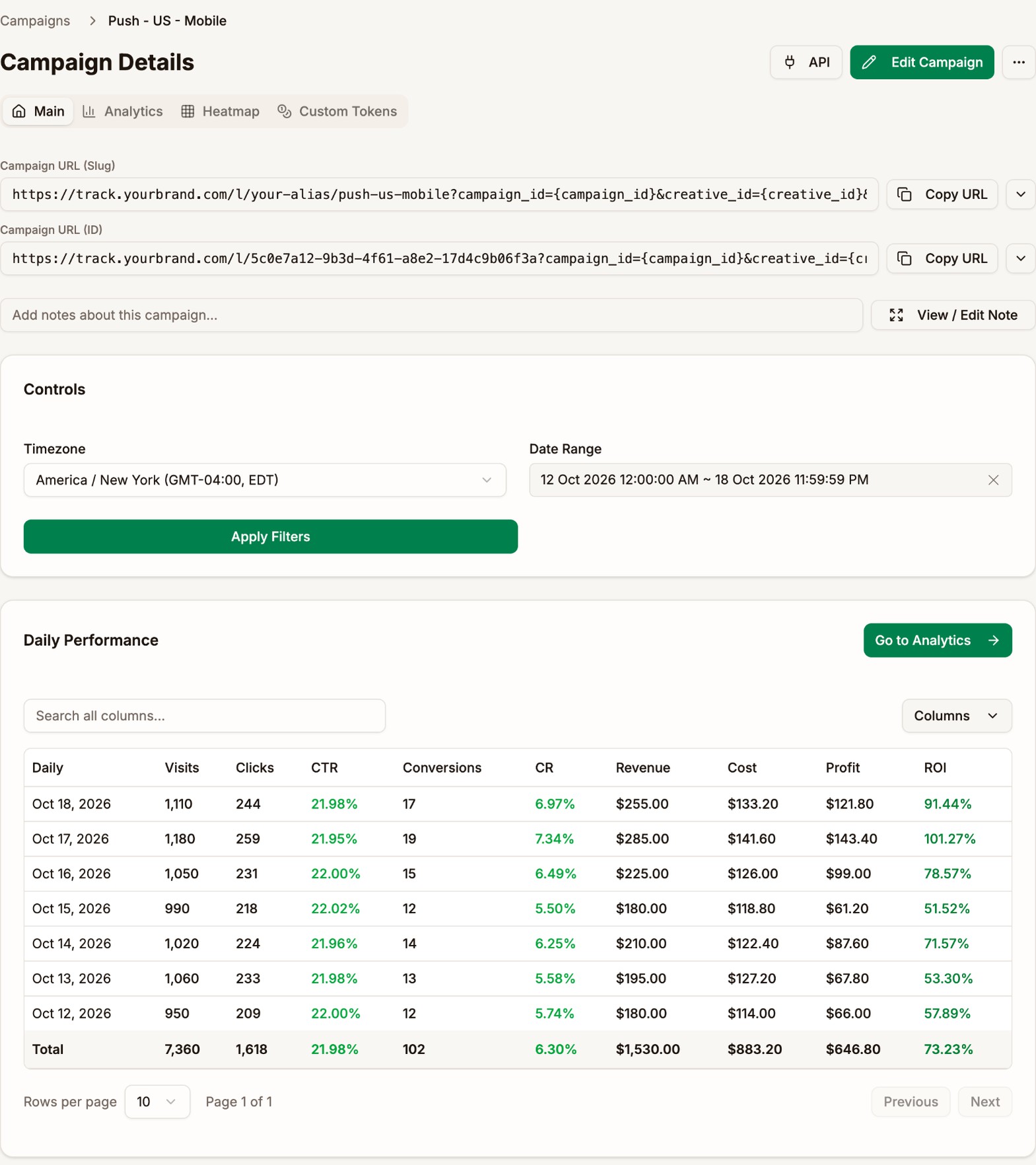
The top of the tab holds the campaign URLs and the notes. See Campaigns. Below them are four tables. A table only appears when it has numbers for the date range.
| Table | One row for each | Button |
|---|---|---|
| Daily Performance | Day with visits, newest first | Go to Analytics opens the Daily breakdown |
| Lander + Offer Performance | Lander and offer pair | Go to Analytics opens the Lander + Offer breakdown |
| Rule Performance | Rule of the campaign's combination | Go to Analytics opens the Rule breakdown |
| Custom Tokens Performance | Value of custom token 1 | Go to Custom Tokens opens the Custom Tokens tab |
Go to Analytics opens the Analytics tab with the matching breakdown already picked.
Lander + Offer Performance
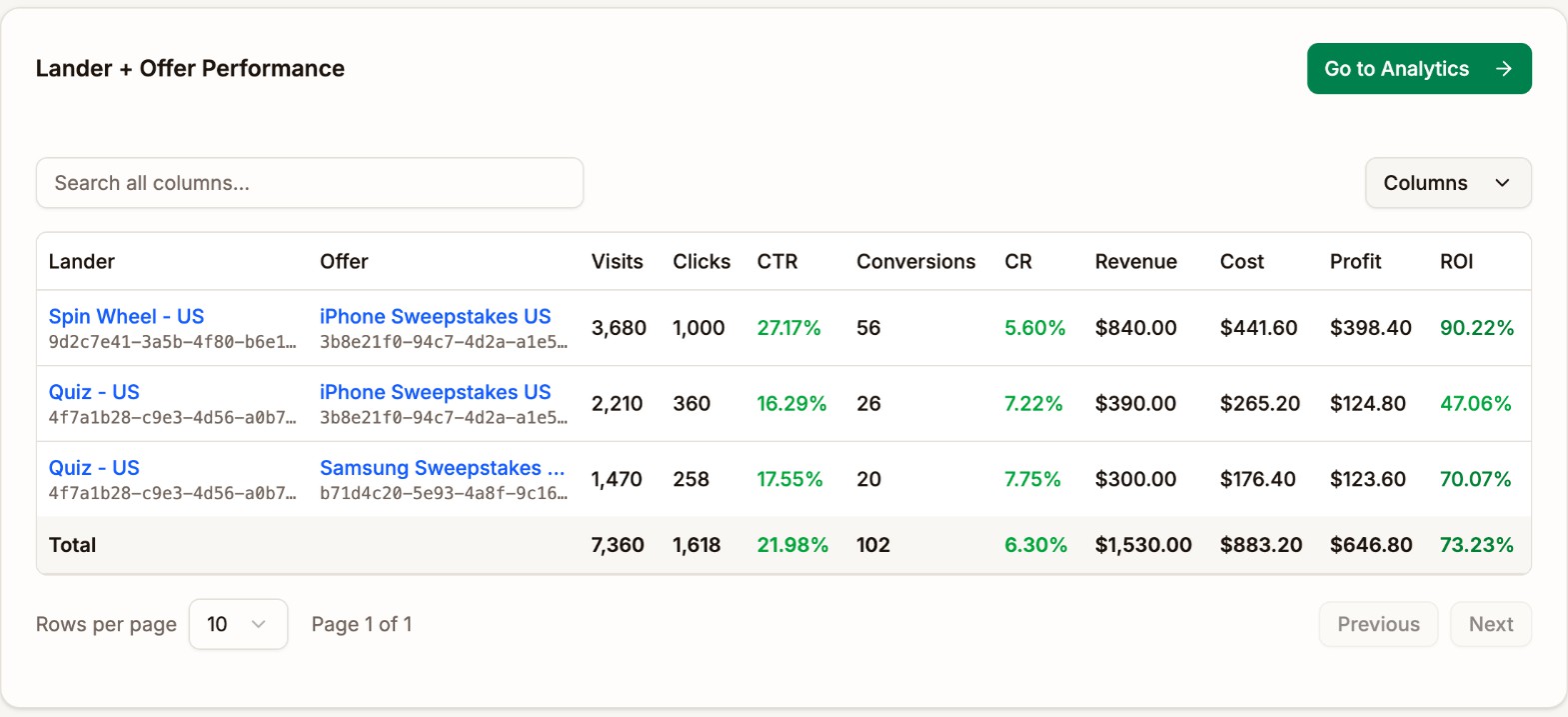
Each row is one path a visitor can take through the campaign's combination. Compare CTR to see which lander sends more visitors on, and CR to see which offer converts them.
Here, Spin Wheel - US gets a 27.17% CTR against 16.29% for Quiz - US on the same offer. Quiz converts better once visitors reach the offer, but Spin Wheel's extra clicks make it the more profitable path.
Rule Performance
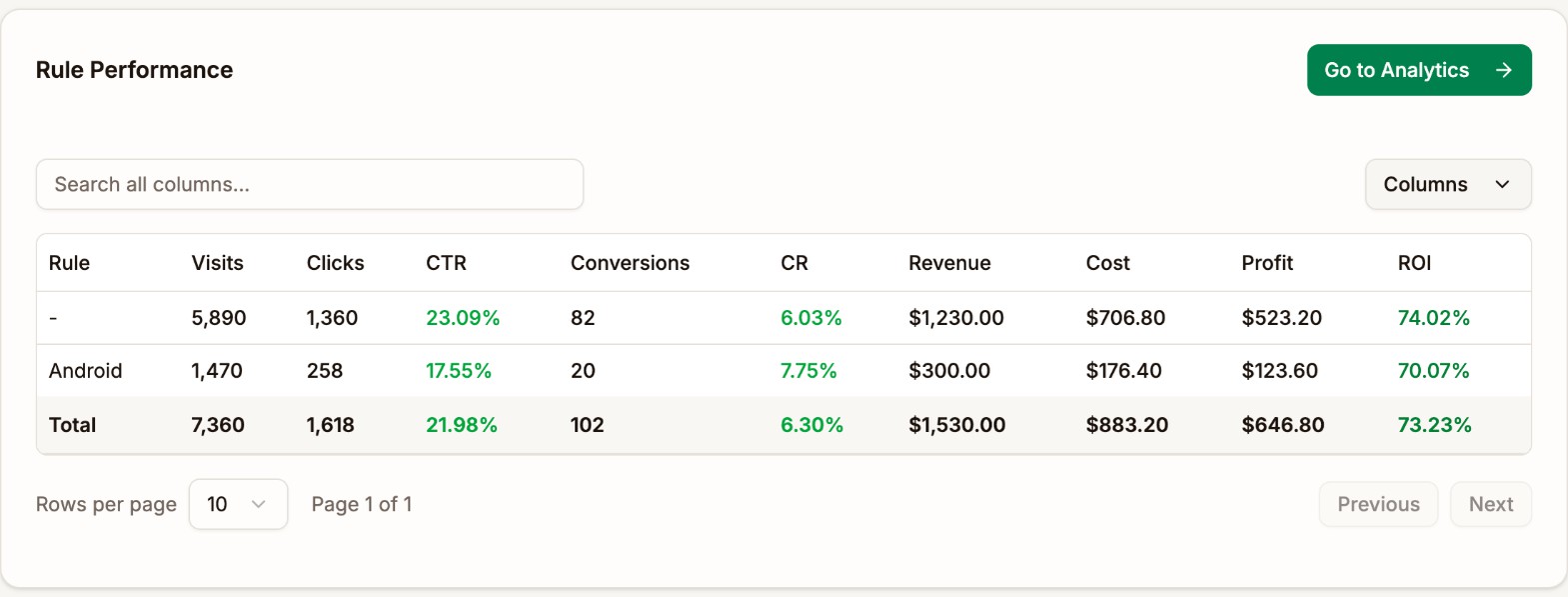
The row marked - holds the visits no rule matched, which took the combination's default paths. The other rows show each rule. If a rule loses money while the default paths make it, change the rule's paths or pause the rule. See Rules.
Analytics
The Analytics tab breaks the campaign down by one detail at a time. Click a tab, such as Country, OS, or V3, and the report changes straight away.
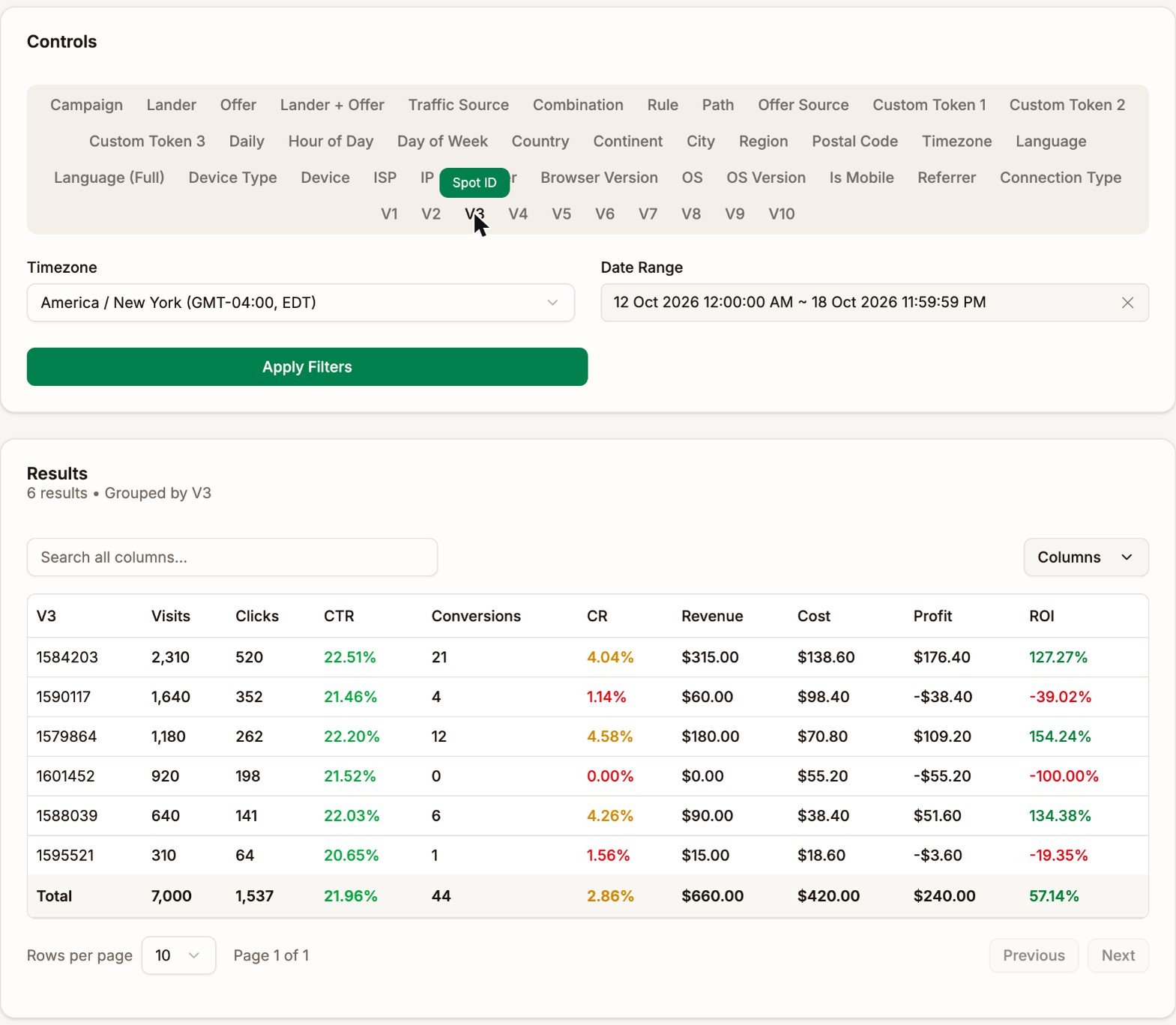
- The tabs are the same details you can group by on the Analytics page. See Group By.
- Lander + Offer shows each lander and offer pair.
- Hover over V1 to V10 to see the name you gave that variable on the traffic source, such as Spot ID.
- If the campaign's combination has rules, a Rule list appears. Pick All, Default for the visits no rule matched, or one rule, and click Apply Filters. The tabs you click next keep that choice.
The tab only shows this campaign. To compare campaigns, or to filter by more than one detail, use Tracker → Analytics. See Analytics.
Heatmap
The Heatmap tab shows the campaign by weekday and hour, so you can see at a glance when it makes money.
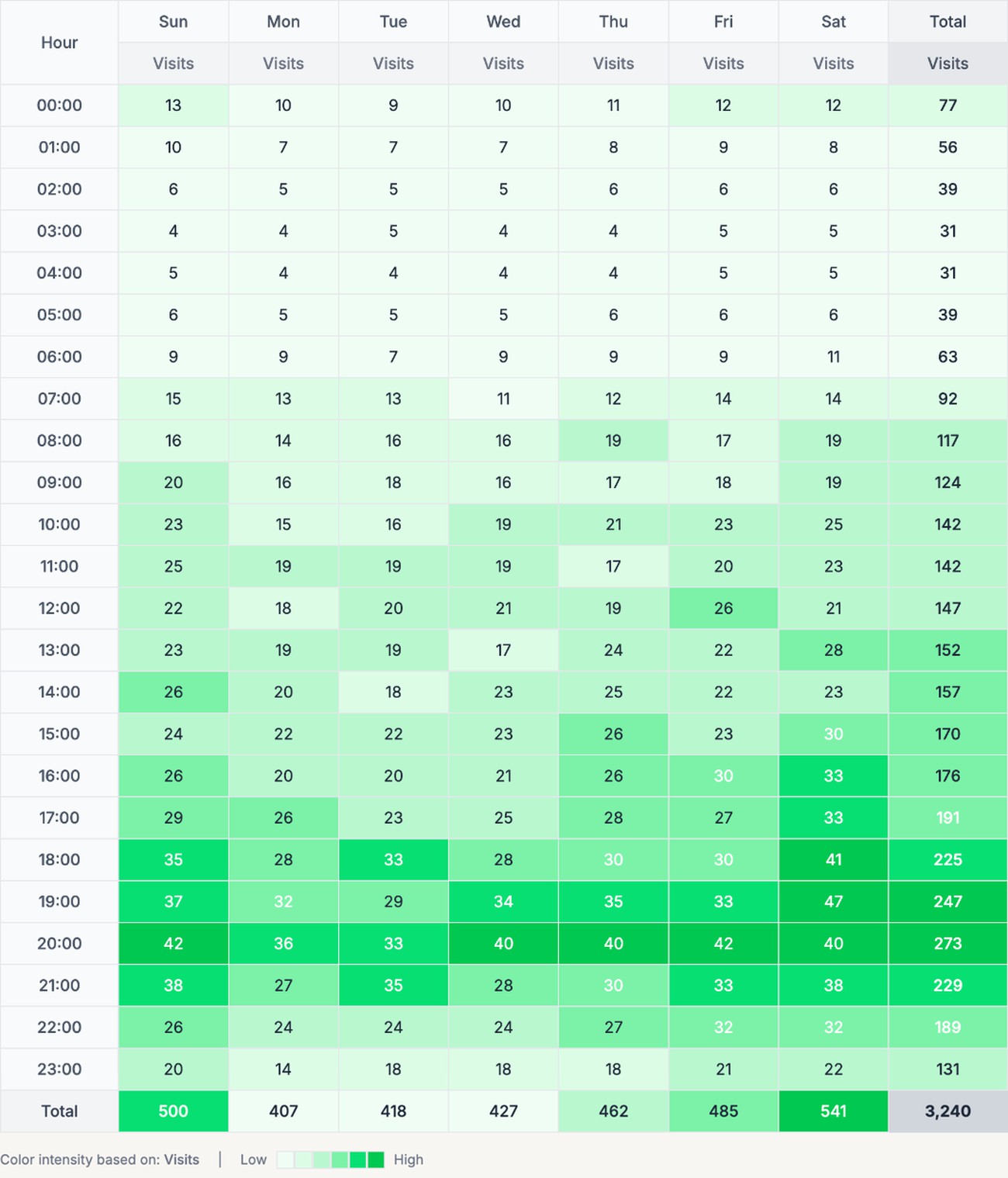
- Show Metrics picks the numbers in each cell: Visits, Clicks, Conversions, Revenue, Cost, Profit, and ROI. At least one stays on.
- Color By picks the number that sets the color. Darker green means more.
- With Profit or ROI, losing cells are red and making cells are green. Color by Profit to find the hours to stop buying.
Cutting hours is the last step of optimizing a campaign. It trims a campaign that already works, but it rarely turns a losing one around. See Optimization.
- The Total column adds up each hour across the week, and the Total row adds up each day.
- Hover over a cell to see its day and hour, such as Monday at 14:00.
The date presets on this tab are Today, Yesterday, Last 7 days, and Last 30 days. Use at least two weeks, so each weekday has enough visits to compare.
Custom Tokens
The Custom Tokens tab holds the campaign's custom token definitions and value transformations. See Custom Tokens.
Custom Tokens Performance at the bottom shows how each recorded value did. Use Tokens to pick which of tokens 1, 2, and 3 to show. Go to Analytics opens the same values on the Analytics page.
The API window
Click API at the top of a campaign's page to see how the campaign's cost is tracked and, for traffic sources connected by API, to control the campaign at the traffic source.
The first line says where the campaign stands:
| You see | Meaning | What to do |
|---|---|---|
| This campaign does not have a traffic source assigned. | The campaign has no traffic source | Edit the campaign and pick one |
| API cost fetching is available when your traffic source has an API integration configured. | The traffic source isn't connected by API | Click Configure API to connect it |
| Finish API setup on your traffic source | The API key or the Campaign ID Token is missing | Click Configure API and add what the message names |
| API cost sync is active. Campaign costs update automatically. | Cost sync is set up | Nothing. Quick Actions appear below. |
- Configure API opens the traffic source's settings in place. See Cost sync.
- Edit Cost Settings changes this campaign's cost model. See Cost model.
- Model shows the campaign's cost model and where its cost comes from: (API cost only) for CPM, (API primary, CPC fallback) when synced cost comes first, or (CPC only, API disabled) when Skip API cost fetching is on.
Quick Actions
Traffic Source Campaign ID is the campaign at your traffic source that the buttons act on.
- The list shows the IDs Proferex has seen on this campaign's recent visits, in the variable set as Campaign ID Token on the traffic source. A campaign that hasn't had visits yet shows No campaign IDs yet.
- Click the star to make the selected ID the default. The default is picked whenever you open the window.
- Click + to add an ID by hand, such as for a campaign that hasn't sent traffic yet. TrafficJunky, TrafficStars, and ExoClick IDs are numbers only.
- Refresh reloads the list.
The buttons you get depend on the traffic source:
| Button | TrafficJunky | TrafficStars | ExoClick | What it does |
|---|---|---|---|---|
| Campaign Overview | Yes | Yes | Yes | Opens the campaign in your traffic source account, in a new tab |
| Sources | Yes | Opens the campaign's list of spots in TrafficJunky, where you can block the ones that lose money | ||
| Ads | Yes | Opens the campaign's ads in TrafficJunky | ||
| Pause | Yes | Yes | Pauses the campaign at the traffic source | |
| Resume | Yes | Yes | Starts the paused campaign again |
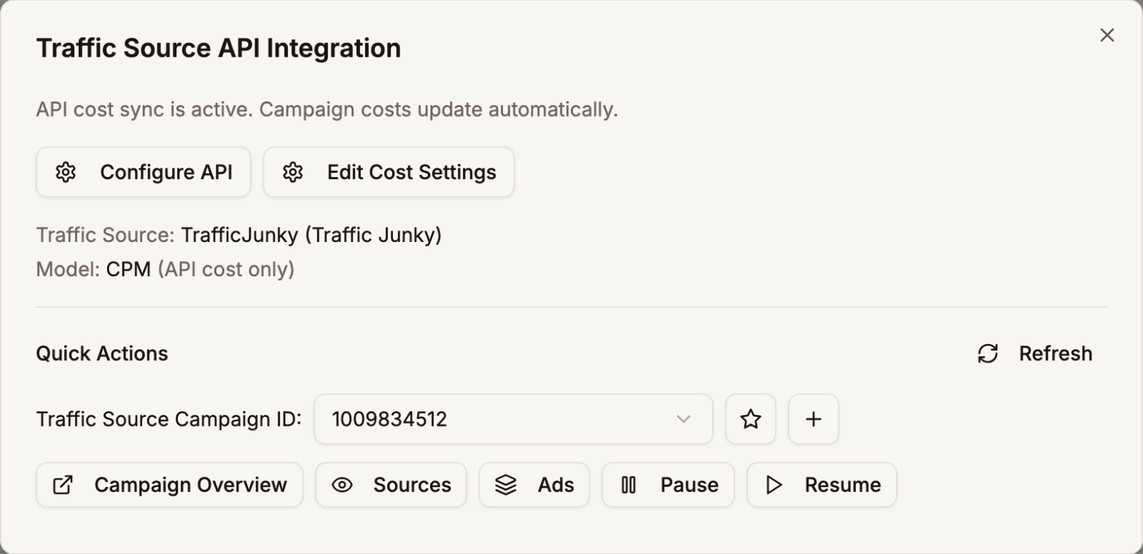
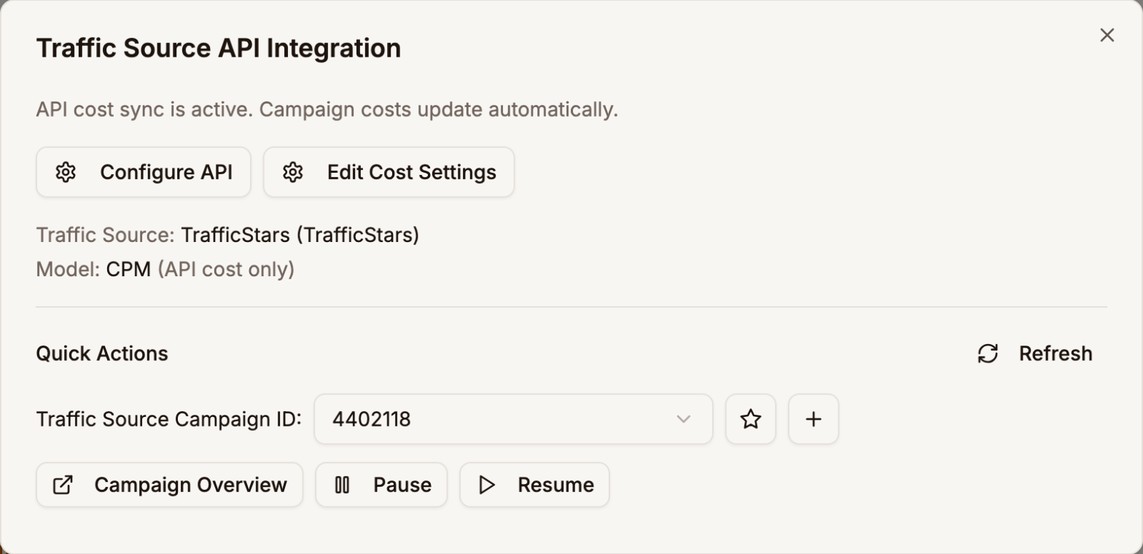
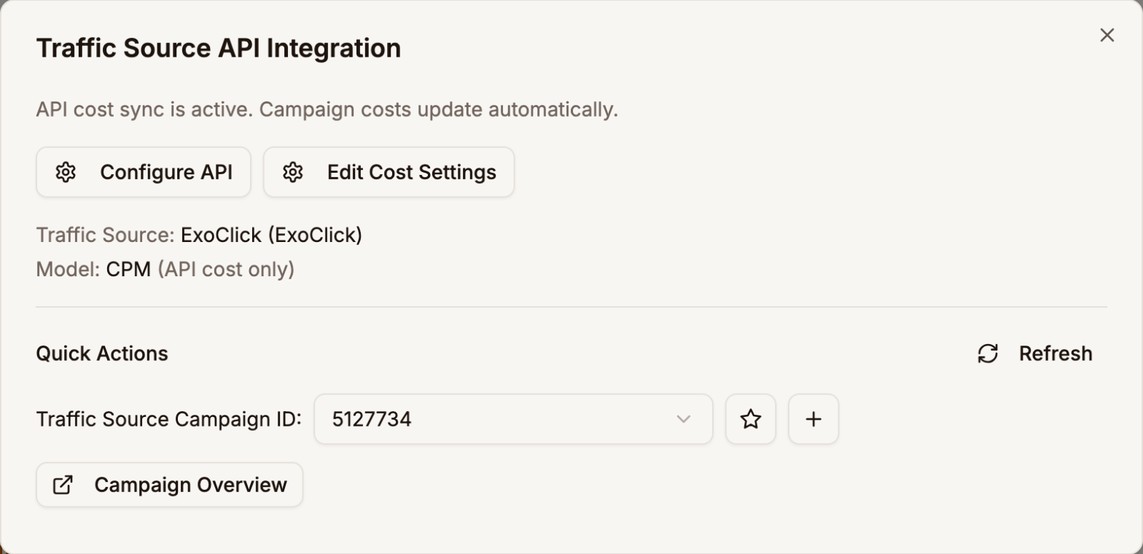
Pause and Resume act straight away, with no confirmation. A message confirms Campaign paused or Campaign resumed. The window doesn't show whether the campaign is running at the traffic source, so check there if you aren't sure.
Pausing at the traffic source stops new visits from that campaign. Your Proferex campaign link keeps working for anyone who still has it.
Examples
Check a campaign every morning
- Open the campaign and set Date Range to Last 7 Days.
- In Daily Performance, compare yesterday with the days before. A drop in CR with steady CTR points at the offer or the postback. A drop in CTR points at the lander or the traffic.
- In Lander + Offer Performance, check that no path has turned unprofitable.
- In Rule Performance, check each rule against the - row.
Yesterday's cost is final about two hours after midnight in your traffic source's timezone. Judge yesterday after that.
Compare the ads
- Open the Analytics tab and click the V that holds the ad, such as V2, the creative ID on TrafficStars and ExoClick, or V1, the banner name on TrafficJunky.
- Compare CR, EPV, and ROI for each ad that has spent two to three payouts.
- An ad with a high CTR and a low CR brings visitors who don't want the offer. Pause it at your traffic source, and test new ads against the winner.
Block a losing spot in one campaign
- Open the Analytics tab and click the V that holds the spot ID. Hover over the V tabs to find it, such as V3 for TrafficStars.
- Click the Cost heading to sort by spend.
- Note the spots that have spent two to three payouts and lose money. In the example above, 1601452 spent $55.20 with no conversions and 1590117 lost 39%.
- Click API, then Campaign Overview, and block those spots in the campaign's settings at the traffic source. On TrafficJunky, click Sources instead.
Pause a campaign that is losing money
If a campaign loses money for a day or more and you need time to look into it:
- Click API.
- Check that the right ID is picked in Traffic Source Campaign ID.
- Click Pause.
When you've fixed the cause, come back and click Resume.
Stop buying the hours that lose money
- Open the Heatmap tab with Last 30 days.
- Tick Profit in Show Metrics and pick it in Color By.
- Read the Total column. Hours that are red across most weekdays are the ones to stop buying.
- Set the campaign's schedule at your traffic source to skip those hours.
Do this last. Cutting hours trims a campaign that already works, but it rarely brings a losing campaign back to profit. Fix the offer, ads, lander, targeting, and bid first. See Optimization.
Next step
See how one lander, offer, or traffic source performs across all your campaigns. See Detail Pages.