

 VIII
VIII
Blog Settings
Name, author, search details, colors, header links, and footer.
This page explains every blog setting: the name and logo, the author, search and sharing details, colors, and the links in the blog's header and footer.
The settings are in one dialog with five tabs. You see the same tabs when you create a blog and when you edit one. To edit a blog, go to Blog → Blogs, open the menu on its row, and click Edit. Change what you need on any tab, then click Save Changes.
Changes show on the live blog within a minute.
General
The General tab names the blog and sets what shows in its header.
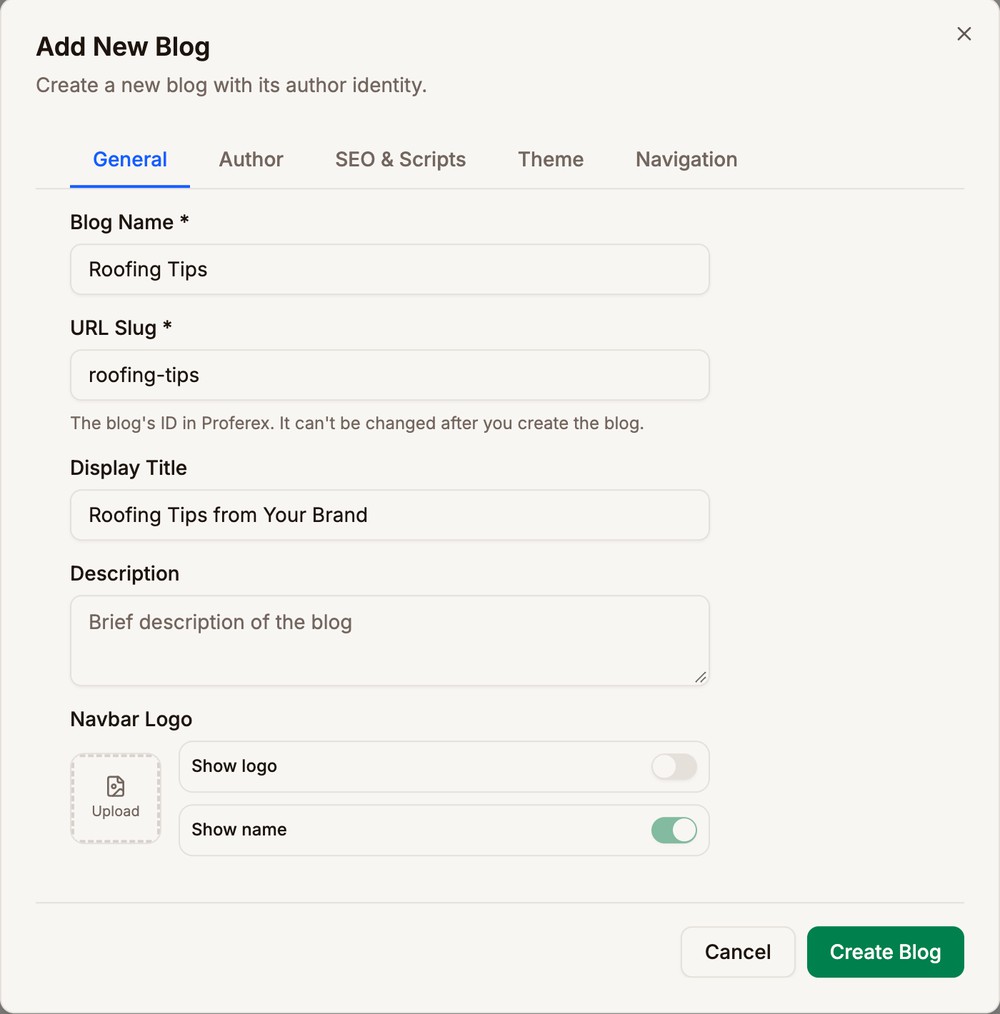
| Setting | What it does |
|---|---|
| Blog Name | The blog's name. It shows in the header and in the copyright line at the bottom of every page. Required. |
| URL Slug | The blog's ID in Proferex. It is set when you create the blog and can't be changed. |
| Display Title | The heading at the top of the home page article list. If you leave it empty, the blog name is used. |
| Description | The line under that heading. It is also the description search engines show for the home page, unless you set a Meta Description. |
| Navbar Logo | The logo in the header. It also shows in the Full footer. |
| Show logo, Show name | Whether the header shows the logo, the name, or both. One of the two always stays on. |
Author
The Author tab sets who readers see as the writer of every article. Articles say "Written by" the Author Name, with a link to the author's page.
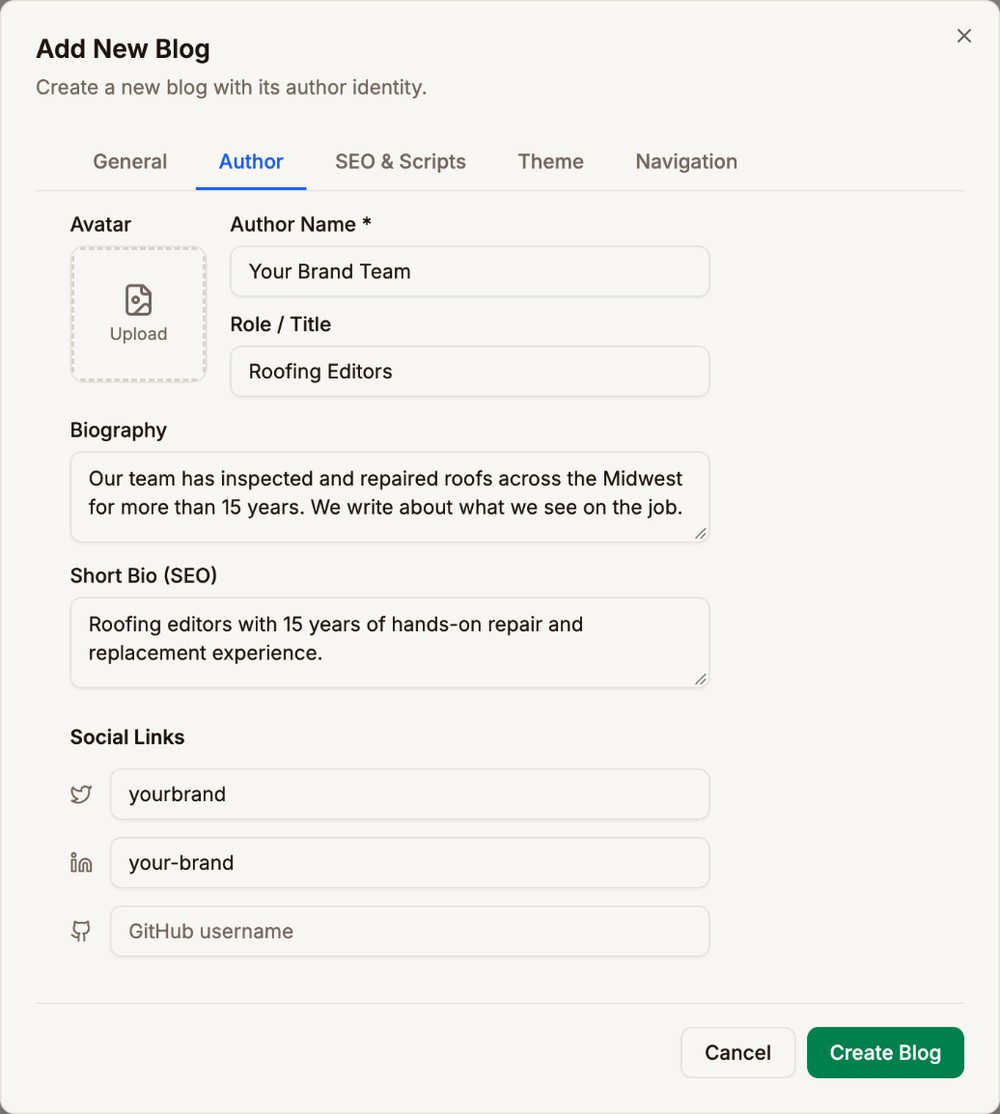
| Setting | What it does |
|---|---|
| Avatar | The author's picture, on the author page and in your list of blogs |
| Author Name | The name on every article and at the top of the author page. Required. |
| Role / Title | A line under the name on the author page, such as Roofing Editors |
| Biography | The text on the author page |
| Short Bio (SEO) | The description search engines show for the author page. Keep it to about 150 to 160 characters. |
| Social links | Your X, LinkedIn, and GitHub usernames, without the @. They become links on the author page. |
SEO & Scripts
The SEO & Scripts tab sets how the blog appears in search results and when someone shares it. It also lets you add code to every page.
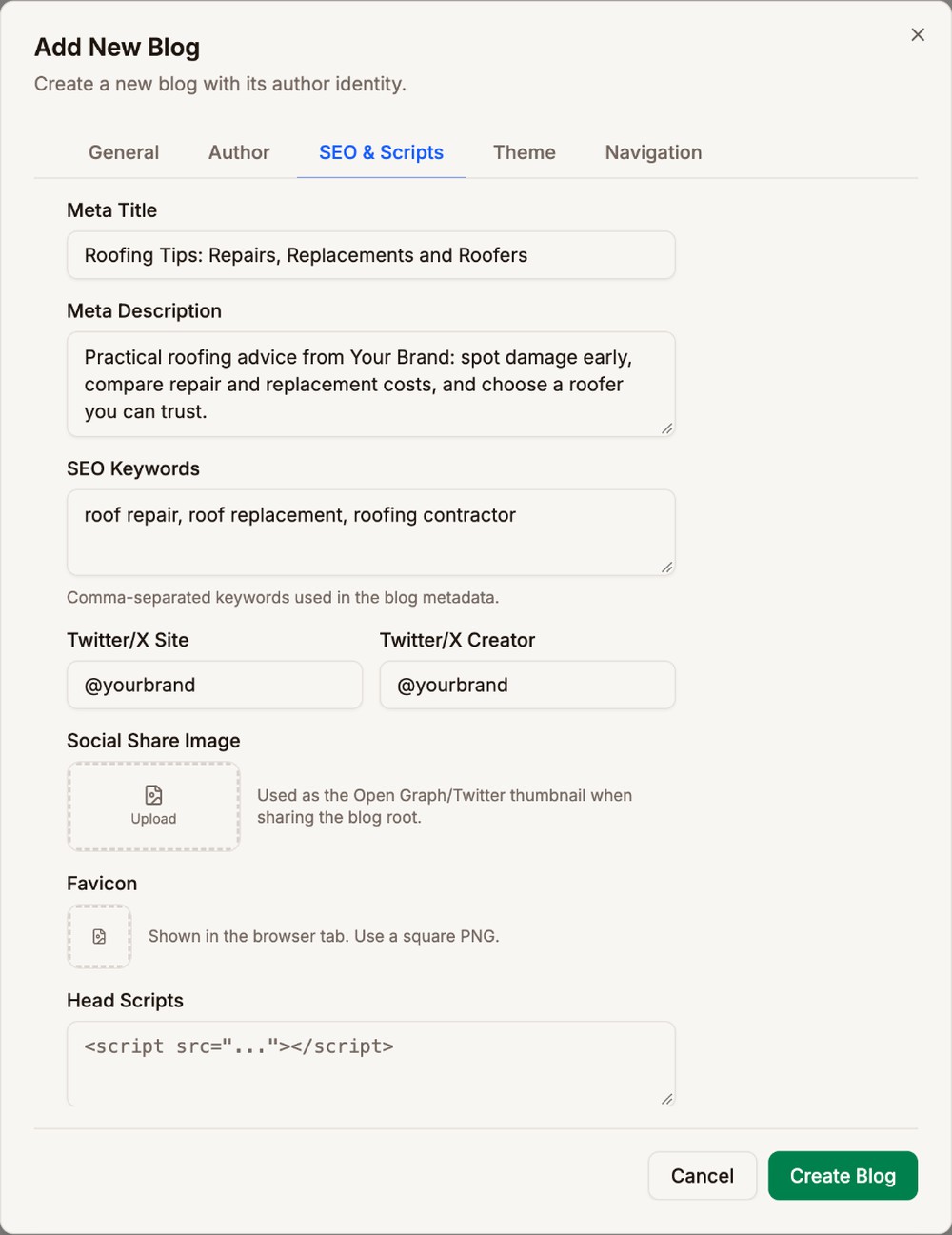
| Setting | What it does |
|---|---|
| Meta Title | The title search engines show for the blog's home page |
| Meta Description | The description search engines show for the home page. Aim for 150 to 160 characters. |
| SEO Keywords | Keywords for the blog, separated by commas |
| Twitter/X Site, Twitter/X Creator | Your brand's and the author's X handles, used when a link is shared on X. Proferex adds the @ if you leave it out. |
| Social Share Image | The picture shown when someone shares the blog's home page on social media or in a chat app |
| Favicon | The small icon in the browser tab. Use a square PNG. |
| Head Scripts | Code that runs on every page of the blog, such as an analytics or chat snippet. Paste the full <script> tags. |
Articles and pages have their own Meta Title and Meta Description. The blog's settings only apply to the home page. If the home page has its own SEO settings, those win. See Pages.
Theme
The Theme tab changes the blog's colors. Each color starts empty, which keeps the default.
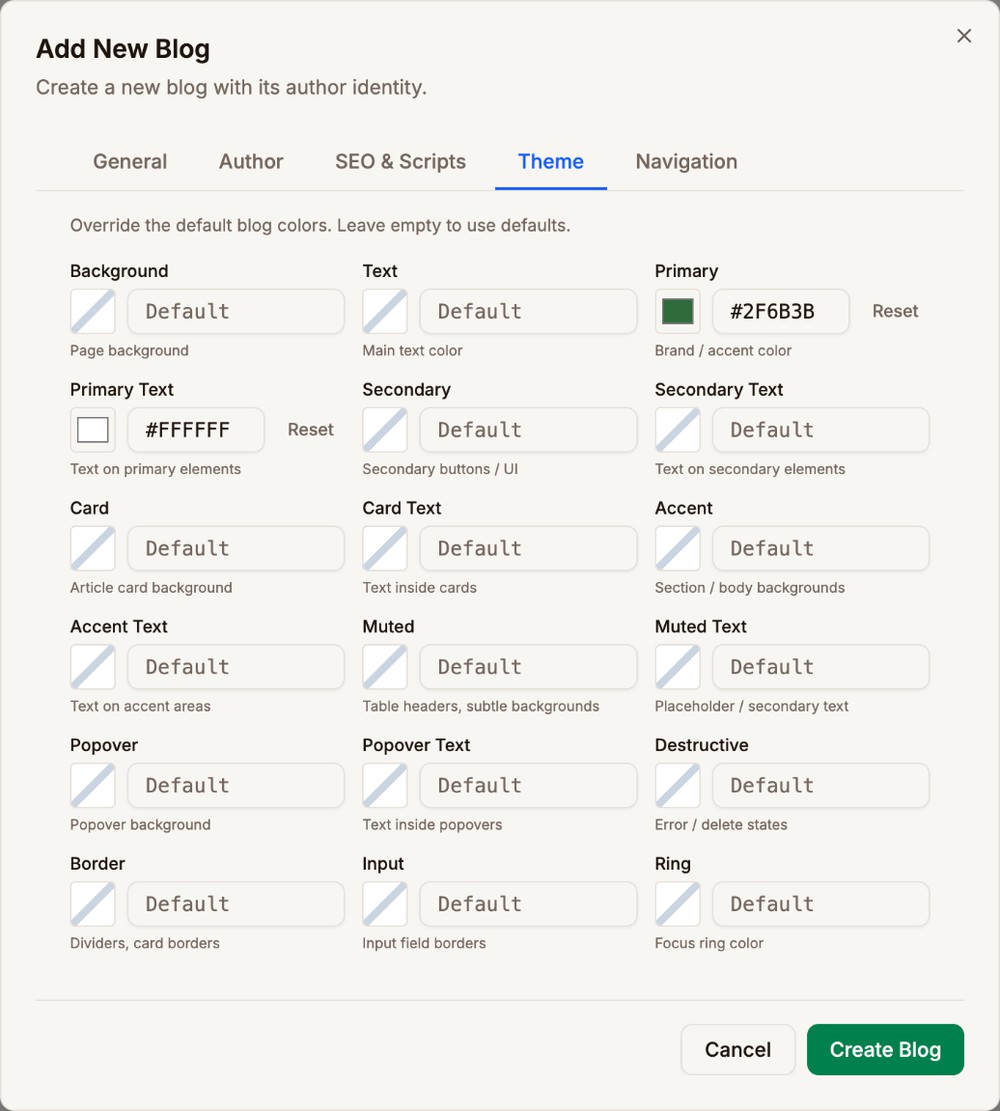
Click the color square to pick a color, or type a hex code such as #2F6B3B. Click Reset to go back to the default. The hint under each color says where it is used.
Most blogs only need two colors:
- Primary is your brand color. It colors buttons and links.
- Primary Text is the text on top of Primary. Pick white or black, whichever is easier to read.
Navigation
The Navigation tab sets the links in the blog's header and what its footer shows.
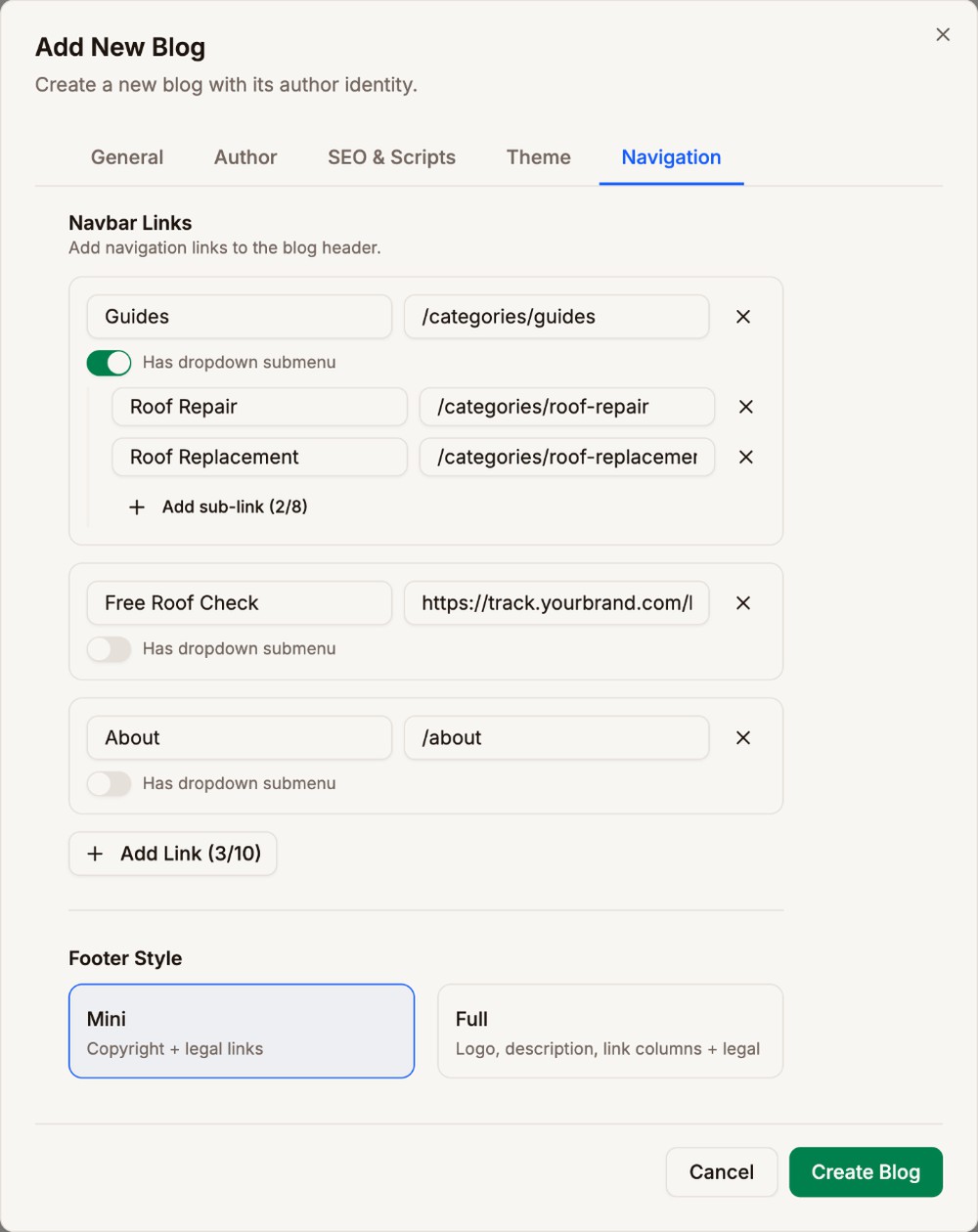
To add a header link:
- Click Add Link.
- Type the text readers see, such as
About. - Type where it goes, such as
/aboutfor a page on your blog, or a full web address that starts withhttps://.
To group links under one menu, turn on Has dropdown submenu and click Add sub-link for each one. The top link then only opens the menu.
| Limit | Value |
|---|---|
| Header links | Up to 10 |
| Links in each dropdown | Up to 8 |
| Link text | Up to 50 characters |
A link must start with / or #, or be a full address that starts with https://, http://, or mailto:. When you save, Proferex drops links with no text or with an address it can't use. Links to other websites open in a new tab.
Footer
Under Footer Style, pick:
- Mini, for a copyright line and links to your policy pages.
- Full, which adds your logo, a Footer Description, and columns of links.
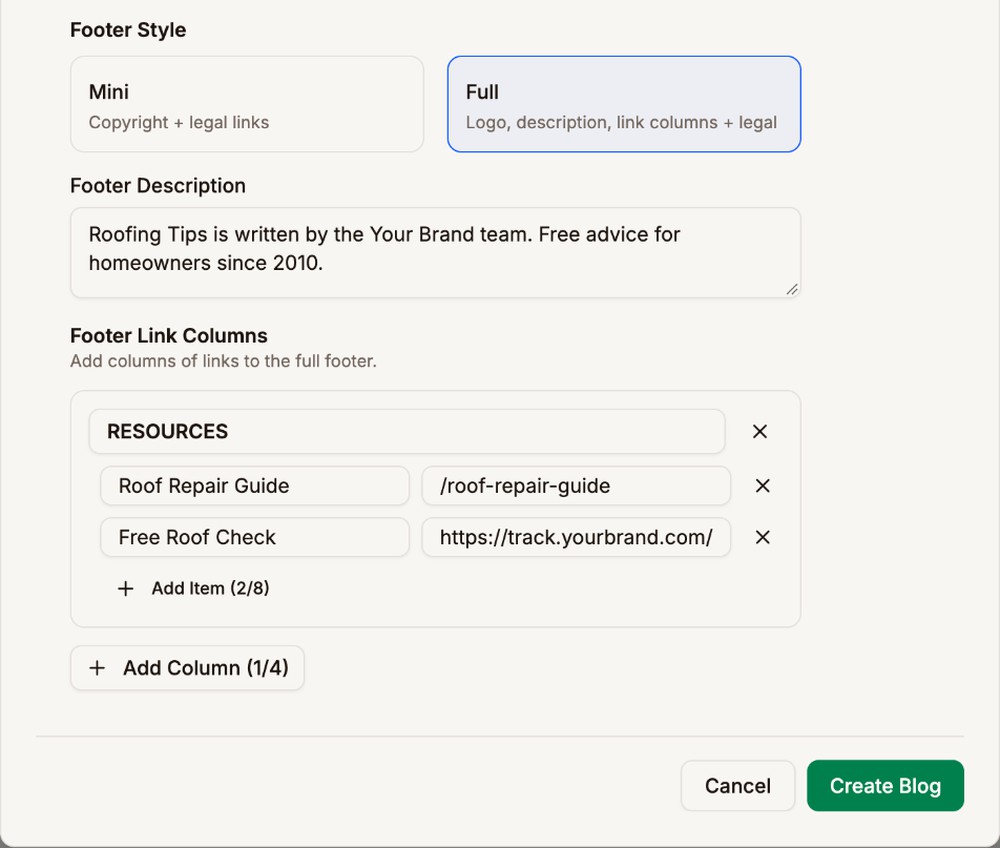
For a Full footer, click Add Column, type the column's title, and click Add Item for each link. You can add up to 4 columns of 8 links each.
Both footer styles show a copyright line with the blog name. They also link to Privacy Policy and Terms of Service once those pages are published.
Next step
Write your first article. See Articles.