

 VIII
VIII
Categories
Group your articles by topic.
This page shows you how to create categories, which group related articles on your blog, such as Roof Repair or Storm Damage.
Each category gets its own page on your blog that lists its articles, such as blog.yourdomain.com/categories/roof-repair. An article can belong to as many categories as you like. Its categories show on its card and at the top of the article, and each one links to the category page.
Go to Blog → Categories to see your categories. If you have more than one blog, each blog has its own tab, because every category belongs to one blog.
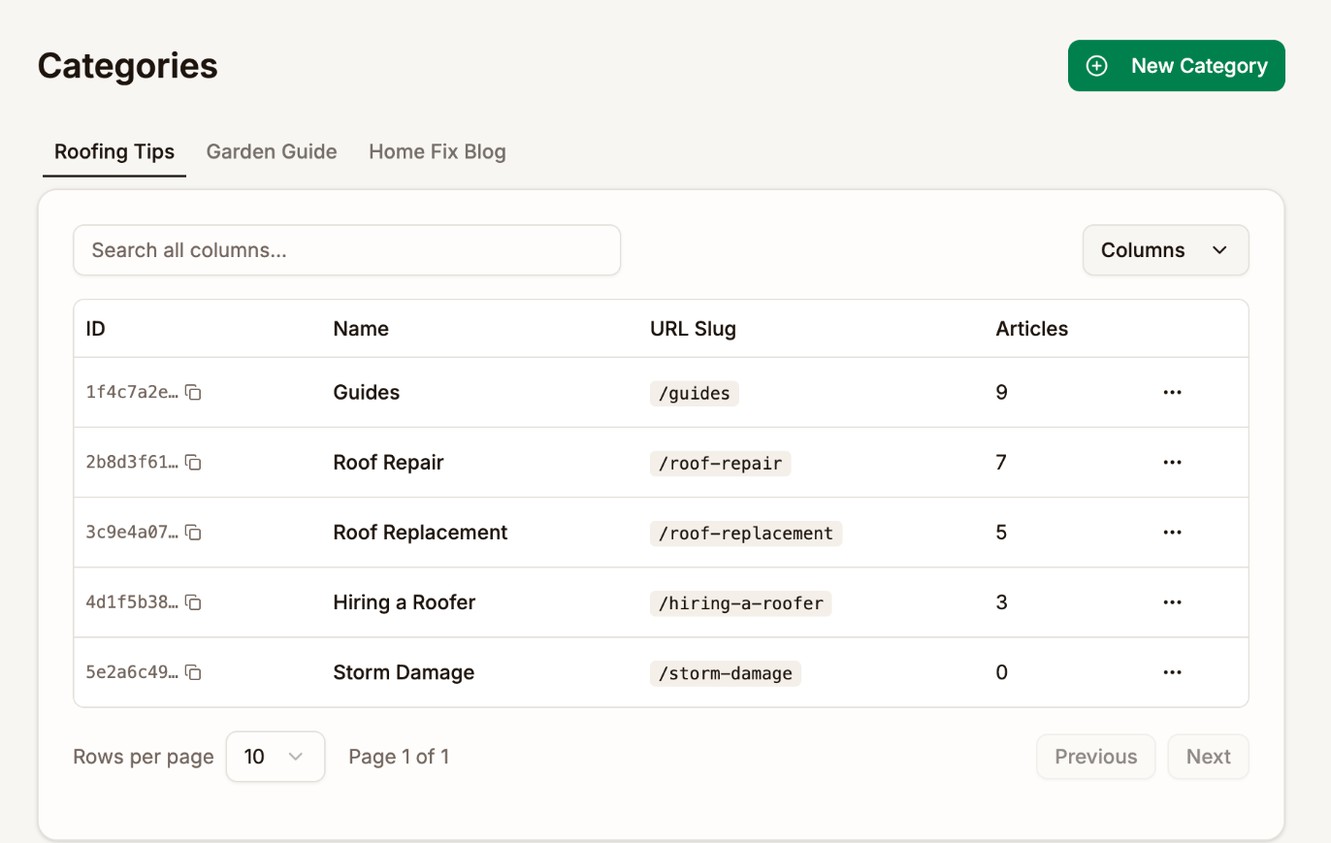
The Articles column shows how many articles are in each category.
Create a category
Create your categories before you write, so they appear as checkboxes in the article editor.
- Go to Blog → Categories.
- Click New Category. The Add New Category dialog opens.
- If you have more than one blog, pick the Blog.
- Enter a Category Name, such as
Storm Damage. The URL Slug fills in for you. - Fill in the other fields if you want to.
- Click Create Category.
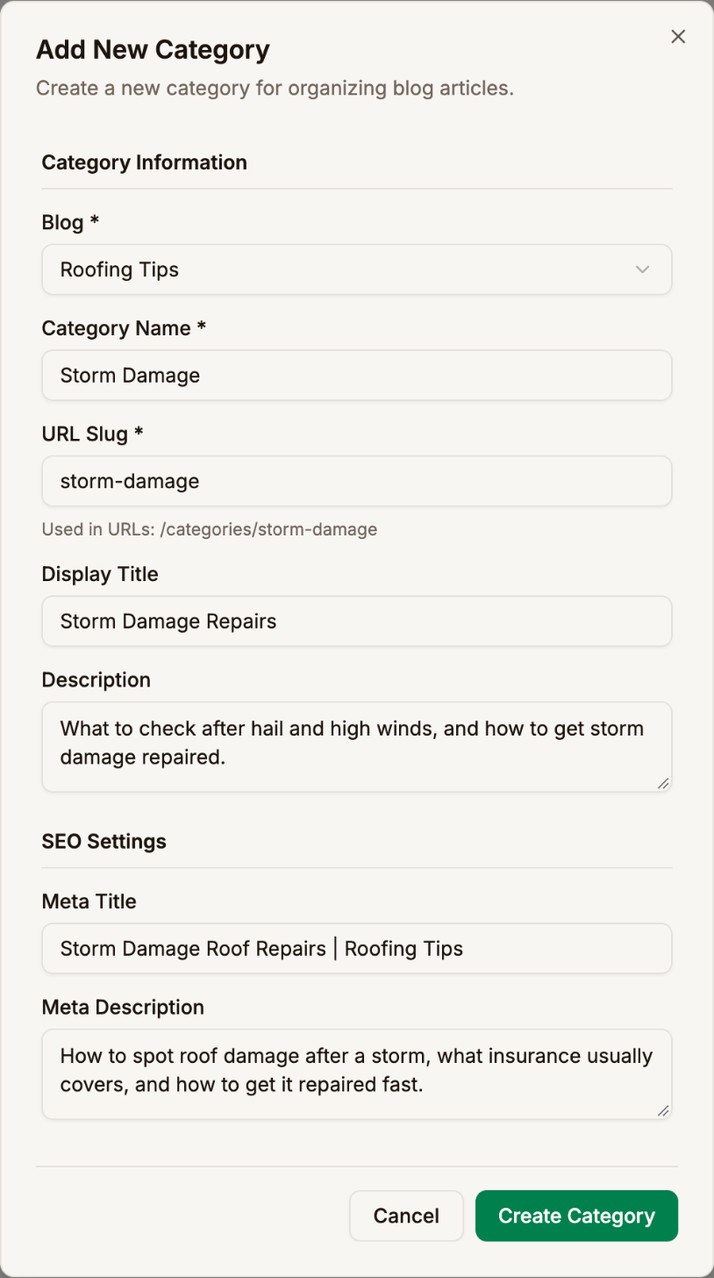
| Field | What it does |
|---|---|
| Category Name | The name on article cards and in the editor's checkboxes. Required. |
| URL Slug | The end of the category page's address, such as storm-damage for /categories/storm-damage. Required. |
| Display Title | The heading at the top of the category page. If you leave it empty, the name is used. |
| Description | The text under that heading |
| Meta Title, Meta Description | The title and description search engines show for the category page |
Two categories on the same blog can't share a URL slug.
To put an article in a category, open the article and tick the category under Categories in the right-hand column. See Articles.
Edit or delete a category
Open the menu on a category's row and click Edit to change it, or Delete to remove it.
Changing the URL Slug changes the category page's address. Links to the old address stop working.
Deleting a category doesn't delete its articles. They stay published and leave the category. An article with no categories left shows as Uncategorized in your article list.
Next step
Upload the images for your articles. See Media Library.