

 VIII
VIII
Media Library
Upload and manage the images for your blog.
This page shows you how to upload images for your blog and use them in your articles and pages.
Each blog has its own media library. Go to Blog → Media Library to see it. If you have more than one blog, pick the blog's tab first.
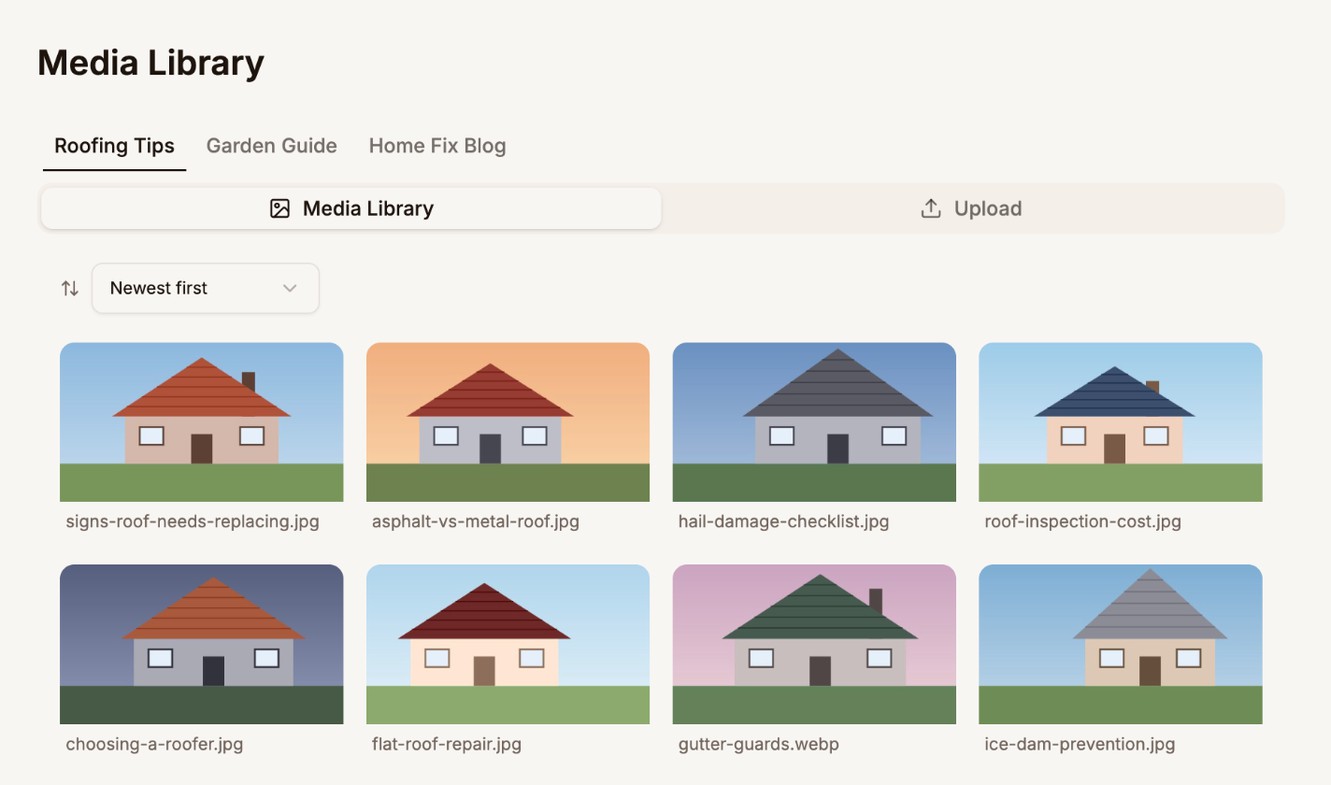
Use the sort menu to order the images by Newest first, Oldest first, Name A-Z, or Name Z-A.
Upload images
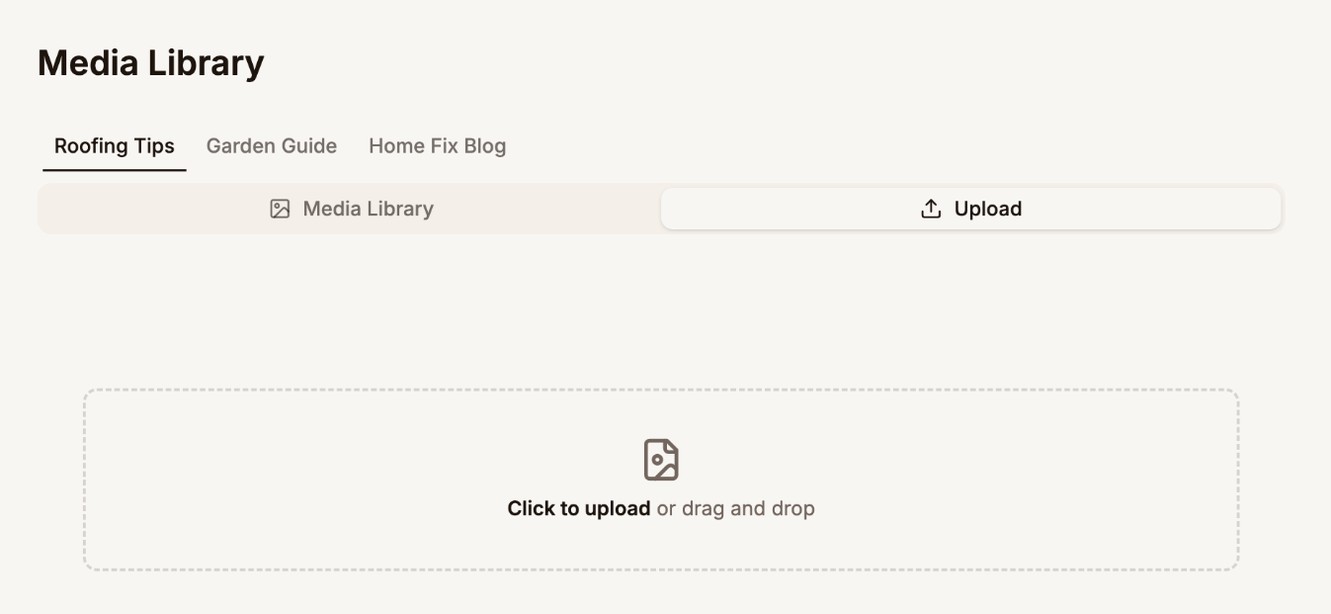
- Go to Blog → Media Library and open the Upload tab.
- Click Click to upload and pick one or more images.
- Check the images you picked. Click the trash icon on any you don't want.
- Click the upload button. It shows how many images you picked, such as Upload 3 Images.
| Rule | Value |
|---|---|
| File types | JPG, PNG, GIF, and WebP. SVG files aren't accepted. |
| Largest file | 3 MB |
| Width | Wider images are resized to 1600 pixels wide. Smaller ones keep their size. |
Proferex also removes the hidden details cameras and phones store in photos, such as the location where the photo was taken. Animated GIFs stay animated.
If a file is too large or the wrong type, the upload fails with Failed to upload one or more images. Resize or convert the image and try again.
If an image has the same name as one you already uploaded, Proferex adds a number to the new one's name, such as roof-1.jpg.
You can also upload images while you write. Click Click to upload under Featured Image in the editor and use the Upload tab. They go to the same media library.
Use an image
- As a featured image: in the article or page editor, click Click to upload under Featured Image, then hover over the image and click Select.
- Inside an article or page: hover over the image in Blog → Media Library and click Copy URL. Then add it with the Image button in the editor. See Add images.
Delete an image
Hover over the image and click the trash icon. The image is deleted straight away, with no confirmation.
Next step
Connect a domain, so readers can reach your blog. See Blog Domain.