# Offer Redirect
> Send visitors from your lander to the offer, and when you need the tracker.js script.
This page shows you how visitors get from your lander to the offer, and the one case where your lander needs an extra script.
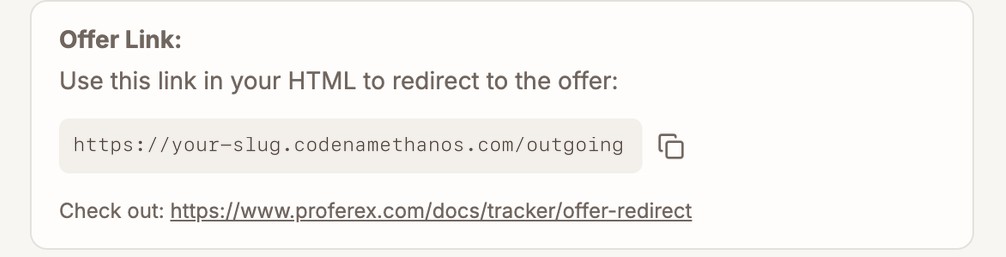
When someone opens your campaign link, Proferex records the visit and picks the lander and offer for them from the campaign's [combination](/docs/tracker/combinations/index.md). The button on your lander then sends them to that offer through your **Offer Link**, which ends in `/outgoing`. Proferex records the click and redirects the visitor to the offer.
You never put the offer's own address on your lander. That way one lander works with any offer, and you can change offers in your combination without touching the page.
---
## Add the Offer Link to your lander
Open the lander in **Tracker → Landers** and copy its **Offer Link**. Use it as the link on every button or link that should lead to the offer.
### Published Pages and External Hosted
Add a normal link to the Offer Link in your page's HTML:
```html
Get The Offer
```
The link must end in exactly `/outgoing`, on one of your tracking domains.
### Blog
In the article or page editor, select the text for your call to action and click **Same Tab** or **New Tab** in the toolbar. The editor turns it into an Offer Link with your tracking domain filled in. See [Articles](/docs/blog/write-and-publish/index.md#link-to-your-offer).
You can also type the link yourself as a markdown link with the full address:
```md
[Get The Offer](https://track.mydomain.com/outgoing)
```
### Direct offer
A path set to **Direct Offer (No Lander)** sends visitors straight from the campaign link to the offer. There is no lander, so there is nothing to add.
---
## Check whether you need tracker.js
To send the visitor to the right offer, Proferex needs to know which visit the click on your button belongs to. When the campaign link and the Offer Link use the same tracking domain, it knows automatically. When they use different domains, an External Hosted lander needs the `tracker.js` script on the page.
| Lander type | Redirect Mode | Campaign link and Offer Link | What you need to do |
|---|---|---|---|
| Published Pages | Either | Same or different domain | Nothing |
| Blog | Either | Same or different domain | Nothing |
| External Hosted | Always redirects | Same domain | Nothing |
| External Hosted | Always redirects | Different domains | Add `tracker.js` |
| Direct Offer | No lander | | Nothing |
"Different domains" means, for example, a campaign link on `track1.mydomain.com` and an Offer Link on `track2.mydomain.com`. Published Pages and Blog landers are served by Proferex, which adds the script for you.
Without the script, a visitor on an External Hosted lander with different domains cannot be matched to their visit. Clicking the button then takes them to your [Fallback Campaign](/docs/account/tracker-settings/index.md), or to a neutral page if you have not set one.
> **Tip:** The simplest setup is to use the same tracking domain for the campaign link and the Offer Link. Then nothing extra is needed for any lander type.
---
## Add tracker.js
Add this line to the HTML of your lander. It works in the `` or the ``. Use one of your own tracking domains in place of `track.mydomain.com`.
```html
```
Your Offer Links stay as they are. When the page loads, the script adds the visit to every link that ends in `/outgoing`, so the click is matched.
> **Note:** The script updates the links that are on the page when it loads. A button your page adds later, for example after a quiz answer, is not updated. Put the Offer Link in the page from the start and show or hide it instead.
### Add it with Google Tag Manager
If your site uses Google Tag Manager, you can add the script there instead of editing your HTML.
1. In Google Tag Manager, go to **Tags** and click **New**.
2. Choose **Custom HTML**.
3. Paste the script line above, with your tracking domain.
4. Set the trigger to **All Pages**.
5. Save and publish the container.
---
## Next step
Open your campaign link, click the button on your lander, and check that you land on the offer. The click appears in the campaign's **Clicks** within a minute. Then set up [Postbacks](/docs/tracker/postbacks/index.md) so conversions come back to Proferex.