# Create New

> How to start a blank lander and build it by hand in the file manager.

This page shows you how to start an empty Lander Upload and build it yourself in the [File Manager](/docs/landing-pages/file-manager/index.md).

Use it when:

- **You are pasting in code.** An AI tool wrote your lander, or the HTML is in a document. Create the upload, add an `index.html`, paste, and save. No zip needed.
- **Your lander is a single page.** There is no point zipping one file.
- **You want to build as you go.** Add files one at a time and edit them in the browser.

If you already have a folder of finished files, [Upload Zip](/docs/landing-pages/upload-zip/index.md) is quicker.

---

## Create the upload

<ol className="manual-illustrated-steps">
  <li>
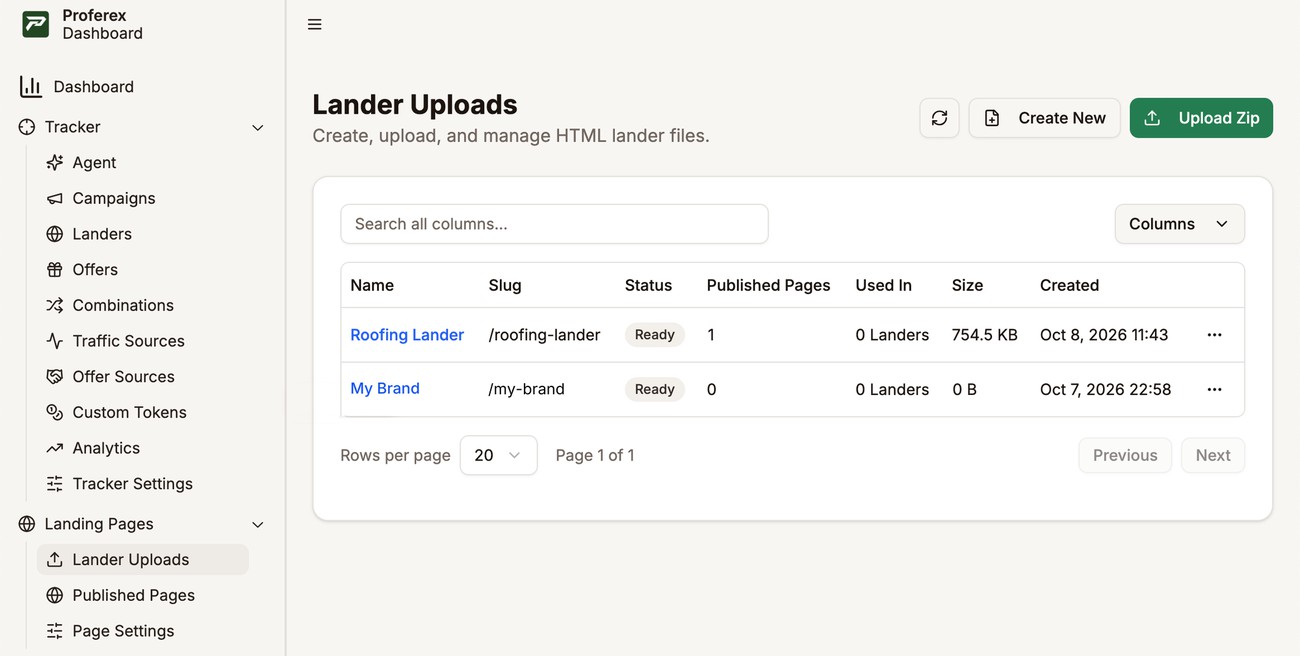
    <p>Go to <strong>Landing Pages → Lander Uploads</strong> and click <strong>Create New</strong>.</p>
    ![Lander Uploads selected under Landing Pages in the sidebar, with two uploads, Roofing Lander and My Brand, and the Create New button outlined](/images/docs/lander-uploads-nav.jpg "Landing Pages → Lander Uploads")
  </li>
  <li>
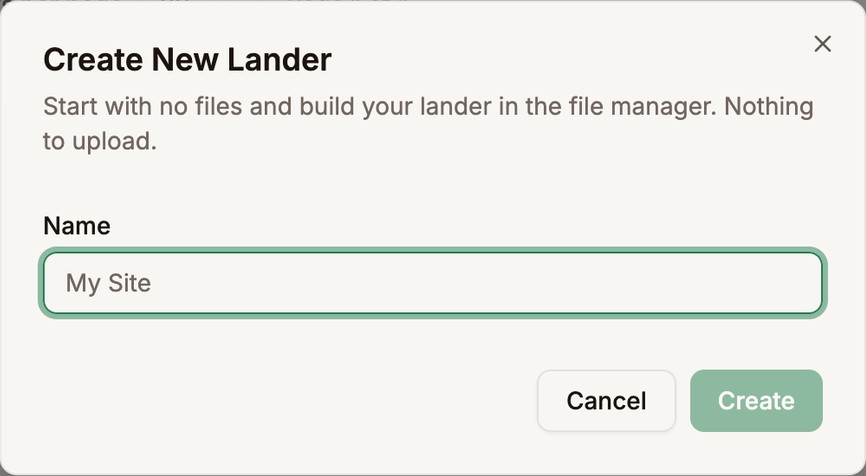
    <p>Type a <strong>Name</strong> and click <strong>Create</strong>. The name also becomes the start of the slug, so keep it short. You can change both later.</p>
    ![The Create New Lander dialog with the Name field outlined](/images/docs/create-new-1.jpg "Name your new upload")
  </li>
</ol>

The upload is ready straight away, since there is nothing to unpack, and it opens in the file manager with no files yet.

---

## Add your first page

<ol className="manual-illustrated-steps">
  <li>
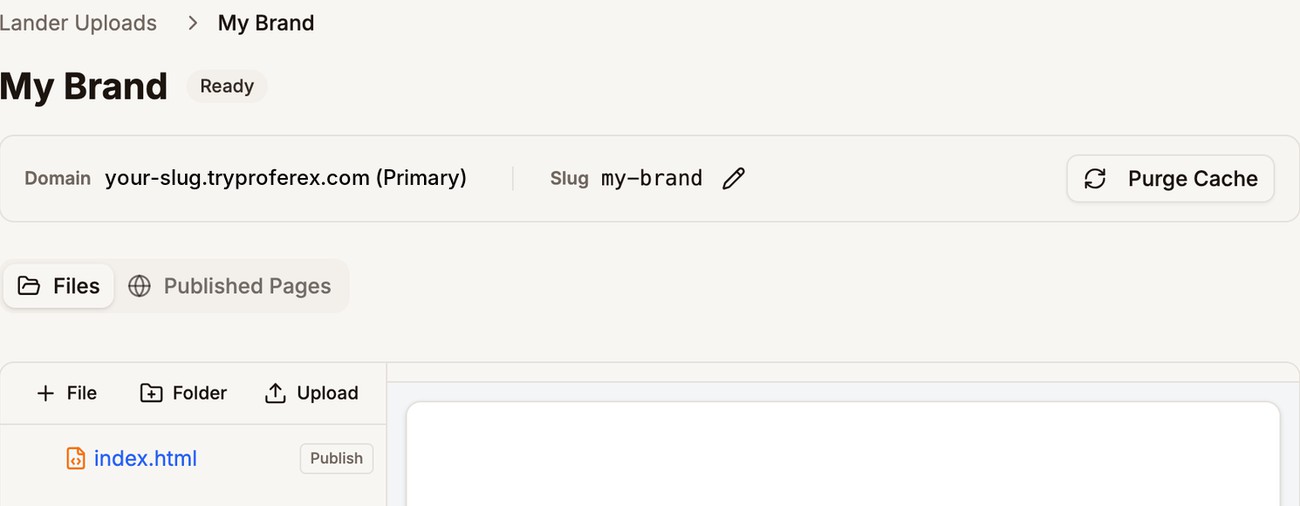
    <p>Click <strong>File</strong> and name the file <code>index.html</code>. Use exactly that name. It is the page people see at the upload's main address.</p>
  </li>
  <li>
    <p>Paste or write your HTML in the editor and click <strong>Save</strong>. Once your page domain is active, the page is online.</p>
  </li>
  <li>
    <p>If you want to use the page in a Tracker campaign, click <strong>Publish</strong> next to the file. Your first published page becomes the upload's default page, which <strong>Copy URL</strong> uses. A plain website can skip this step.</p>
    ![A new upload called My Brand with index.html in the file tree, and the File button and the Publish button outlined](/images/docs/create-new-2.jpg "Add index.html, then publish it if you need it in a campaign")
  </li>
</ol>

Add stylesheets, scripts, and folders the same way. Typing a path such as `css/style.css` creates the folder for you. To add images and other files you cannot type, use **Upload**. See [File Manager](/docs/landing-pages/file-manager/index.md).

An empty upload shows nothing until you add a file, so you can create one now and fill it in later. It works exactly like an uploaded one, with the same editing, publishing, addresses, and [domain options](/docs/landing-pages/page-domain/index.md).

---

## Next step

Learn what else you can do with your files in the [File Manager](/docs/landing-pages/file-manager/index.md).